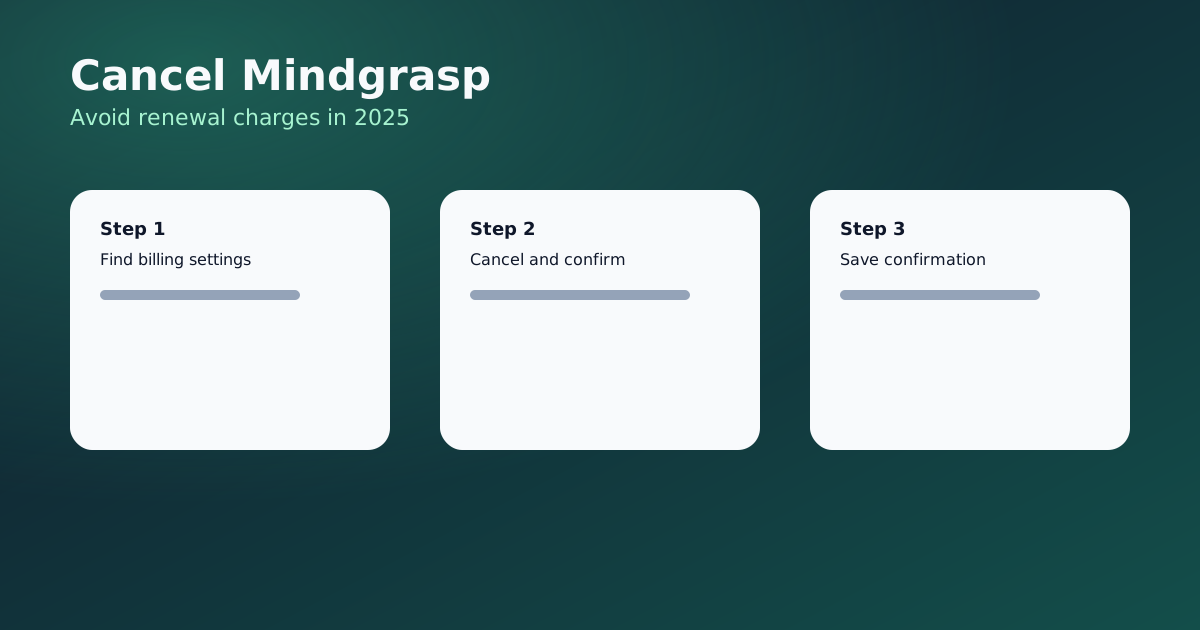
If you are searching for "cancel Mindgrasp" or "Mindgrasp refund," you are not alone. This guide explains the typical steps students use to cancel subscriptions and avoid renewal charges. Always confirm the latest steps on the official Mindgrasp site because billing flows can change.
For a feature breakdown, see our Mindgrasp AI review. If you want a different workflow after canceling, compare options in our Mindgrasp alternatives guide.
Before you cancel
Gather a few details first:
- The email address used for the account.
- The receipt or order ID.
- Your last renewal date.
- Whether you subscribed on web, iOS, or Android.
Typical cancellation path
Most web subscriptions follow a similar path:
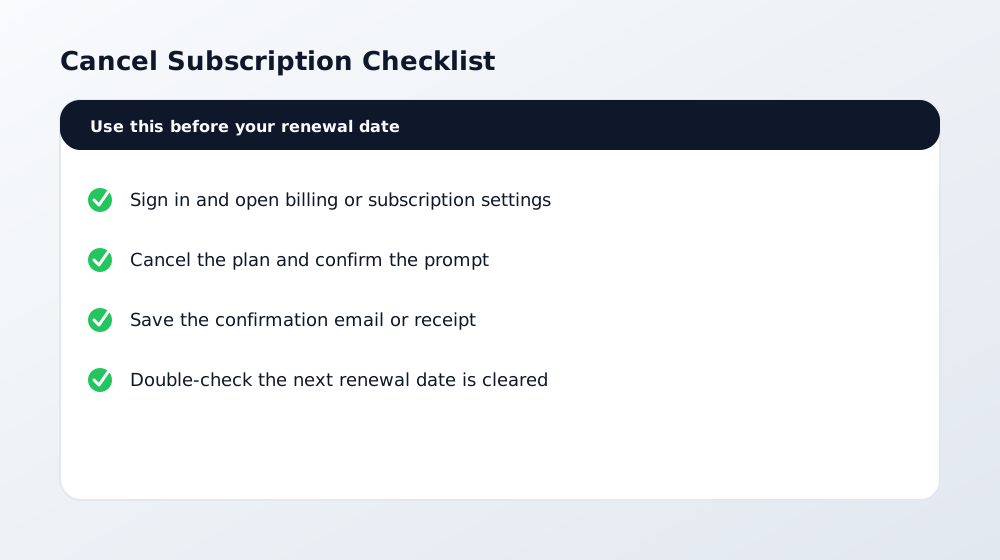
- Sign in and open account settings.
- Look for Billing, Plan, or Subscription.
- Select Cancel and confirm the prompt.
- Save the confirmation email or screenshot.
If you subscribed via an app store
If you paid through Apple or Google, you usually manage the subscription inside the store, not the app. Open your Apple ID or Google Play subscriptions page and cancel there.
Refunds and billing disputes
Refund policies vary by provider and by how you paid. If you believe a charge is incorrect:
- Contact support with your order ID and a clear explanation.
- Check your app store refund steps if you subscribed there.
- Keep receipts until the dispute is resolved.
What to try after you cancel
If you still want YouTube to notes or video to notes, consider a tool that makes pricing and outputs clear. WhispriNote offers structured notes with visuals and a simple free tier for testing.