WhatsApp can transcribe voice notes natively on some iPhone and Android devices, but the feature does not always appear and it often fails on forwarded voice notes or unsupported languages. When users see "Transcript unavailable," the problem is usually rollout, language mismatch, noisy audio, or the fact that the message was forwarded instead of recorded normally. This guide shows the built-in WhatsApp steps first, then the best fixes and external tools when native transcription is missing or unreliable.
Quick answer (fastest method)
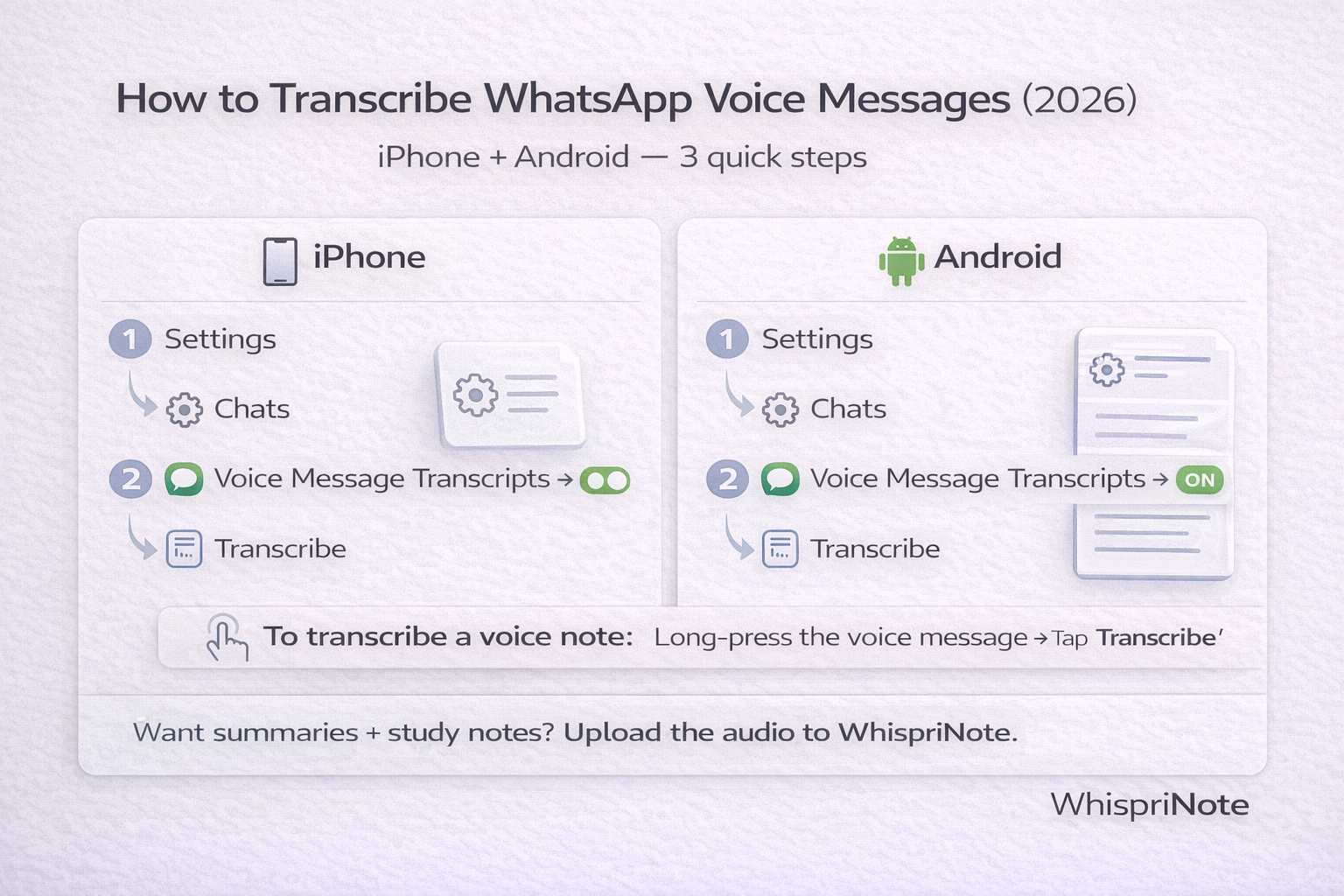
- Open WhatsApp -> Settings
- Go to Chats
- Turn on Voice Message Transcripts (choose a transcript language)
- To transcribe: press and hold a voice message -> tap Transcribe
If you do not see the option, jump to the troubleshooting section below.
If you need more than raw transcription - like summaries, action items, and study-ready notes - start with WhispriNote and upload the saved audio file for a cleaner voice-note workflow.
What are WhatsApp voice message transcripts?
Voice Message Transcripts convert a voice note into readable text.
They are great for:
- Reading audio in quiet places (library/class)
- Skimming long voice notes faster
- Copying details (times, addresses, instructions)
- Searching within the chat for key info (by scanning the transcript)
Important: Availability can vary by device, region, and language. If WhatsApp has not rolled it out to you yet, you may not see the setting.
Step-by-step: Turn on WhatsApp voice transcripts (iPhone)
- Update WhatsApp (App Store) to the latest version
- Open WhatsApp
- Tap Settings (bottom-right)
- Tap Chats
- Find Voice Message Transcripts
- Toggle it ON
- Choose your Transcript Language (WhatsApp may download a language pack)
Transcribe a voice message on iPhone
- Open the chat
- Press and hold the voice message
- Tap Transcribe
- Expand the transcript if it is collapsed
Step-by-step: Turn on WhatsApp voice transcripts (Android)
- Update WhatsApp (Google Play) to the latest version
- Open WhatsApp
- Tap the three-dot menu (top-right) -> Settings
- Tap Chats
- Find Voice Message Transcripts
- Toggle it ON
- Choose your Transcript Language
Transcribe a voice message on Android
- Open the chat
- Press and hold the voice message
- Tap Transcribe (or open the three-dot menu -> Transcribe, depending on your version)
"Transcript unavailable" (and how to fix it)
If WhatsApp shows "Transcript unavailable" or does not generate text, try these fixes:
1) Your transcript language does not match the audio language
- Go to Settings -> Chats -> Transcript language
- Set it to the language spoken in the voice note (then try again)
2) Background noise or unclear audio
- Ask the sender to resend the voice note in a quieter environment
- If you are the sender, re-record closer to the mic
3) Feature not available on your device yet
- Update WhatsApp
- Restart your phone
- Check again in Settings -> Chats (Some rollouts take time.)
4) iPhone-specific: Siri/language setup issues
- Ensure Siri is enabled and your iPhone language settings are supported
- Re-try transcript language setup so the language pack downloads correctly
WhatsApp transcripts are helpful... but they are not "notes"
WhatsApp transcripts solve the "I cannot listen right now" problem.
But they do not solve:
- Turning messy audio into a clean summary
- Extracting action items automatically
- Creating study notes from a long explanation
- Organizing multiple voice messages into a single structure
That is where WhispriNote shines.
Best method for long voice notes: Save the audio -> upload to WhispriNote
If you are dealing with:
- a long voice note
- a lecture-ish explanation
- project instructions
- study group audio
- multilingual or messy audio