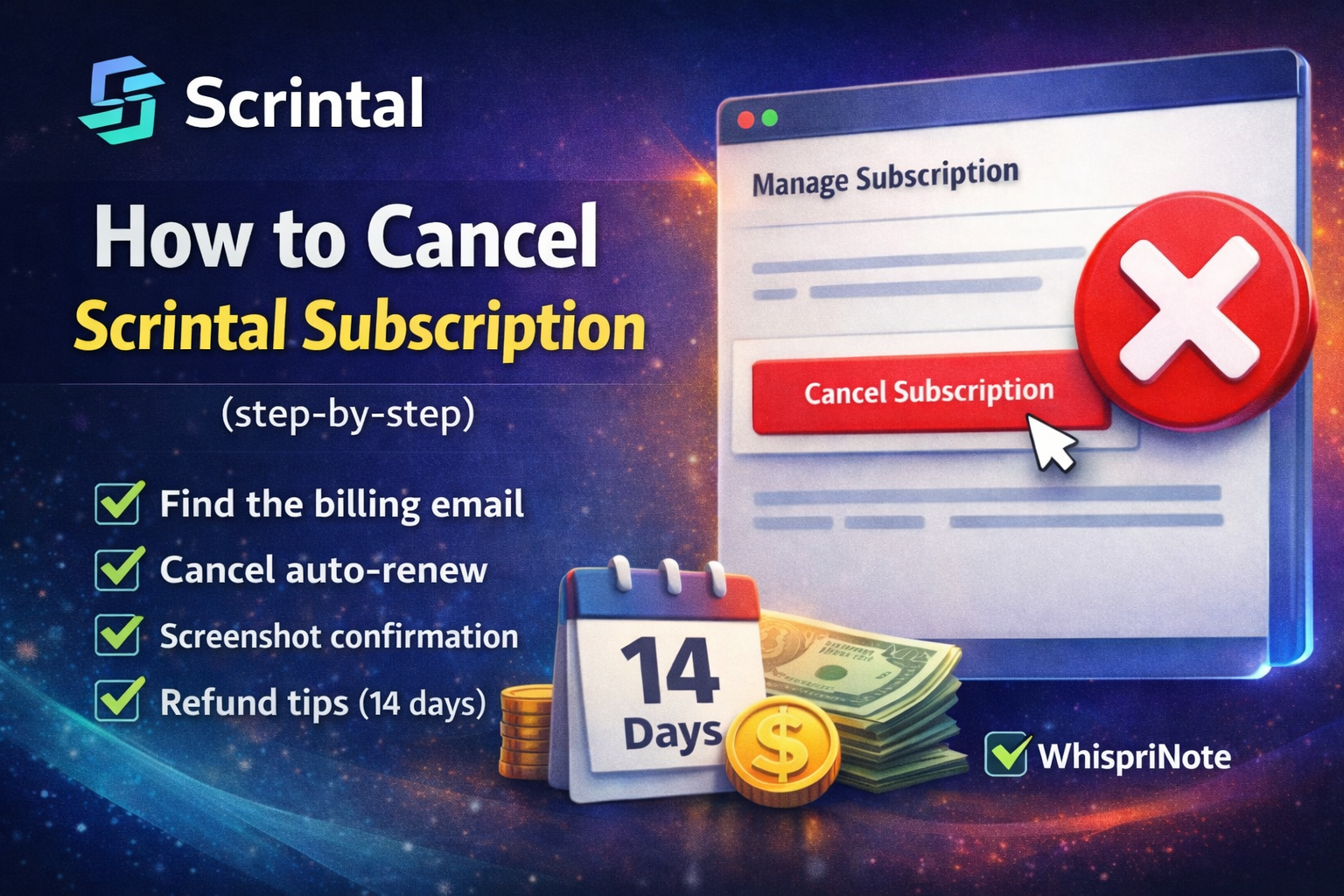
If you are trying to cancel your Scrintal subscription (or stop auto-renewal), you are in the right place. This guide walks you through the exact clicks, plus what to do if you are also trying to request a refund.
As of: Dec 2025 (Scrintal's Support Hub was updated recently).
Quick answer (the 10-second path)
- Open Scrintal (web app)
- Click your profile (top-right)
- Go to Settings -> Subscription
- Click Cancel Subscription and confirm
That is it. You have stopped auto-renewal.
Step-by-step: How to cancel Scrintal subscription
Step 1) Open your Settings
- Log into Scrintal
- Click your profile / initials in the top-right
- Select Settings
Step 2) Go to Subscription
Inside Settings:
- Click Subscription
This is where Scrintal keeps your renewal controls, billing, and refund button (if eligible).
Step 3) Cancel Subscription (stop auto-renewal)
- Click Cancel Subscription
- Confirm when prompted
After this, your plan should no longer renew automatically.
How to request a Scrintal refund (if you are eligible)
Scrintal's refund eligibility depends on timing and whether you used a trial.
Refund window
You may be eligible for a refund if:
- You are within 7 days of a new subscription, and
- You did not start your subscription with a trial, and
- It is your first-time refund request
There is also a shorter window for renewals:
- Refunds may be possible within 3 days of a renewal (again, only for first-time refund requests)
The exact steps to request a refund
- Go to the app and open Settings -> Subscription
- Look for Request refund
- Submit the request
Tip: if you do not see a refund option, you are likely outside the refund window (or your plan started with a trial).
Important: refunds after trial (usually not possible)
If you started your paid subscription after using a trial, refunds generally are not available.
If your main goal is to avoid being charged:
- Cancel before the trial ends
Can you get a discount instead of canceling?
If you like Scrintal but the cost is the issue, Scrintal mentions:
- A student discount (commonly applied when subscribing with a university email)
This can be worth checking before you cancel.