If you've ever recorded a lecture, meeting, or quick idea in Voice Memos (or any voice recorder app), you've probably had this moment:
"I don't want to re-listen to this... I just want the text."
This guide shows the fastest ways to transcribe voice memos to text on iPhone and Android, plus the best workflow if you want to turn that transcript into clean notes, summaries, and study-ready takeaways.
Quick answer (best method depends on your phone)
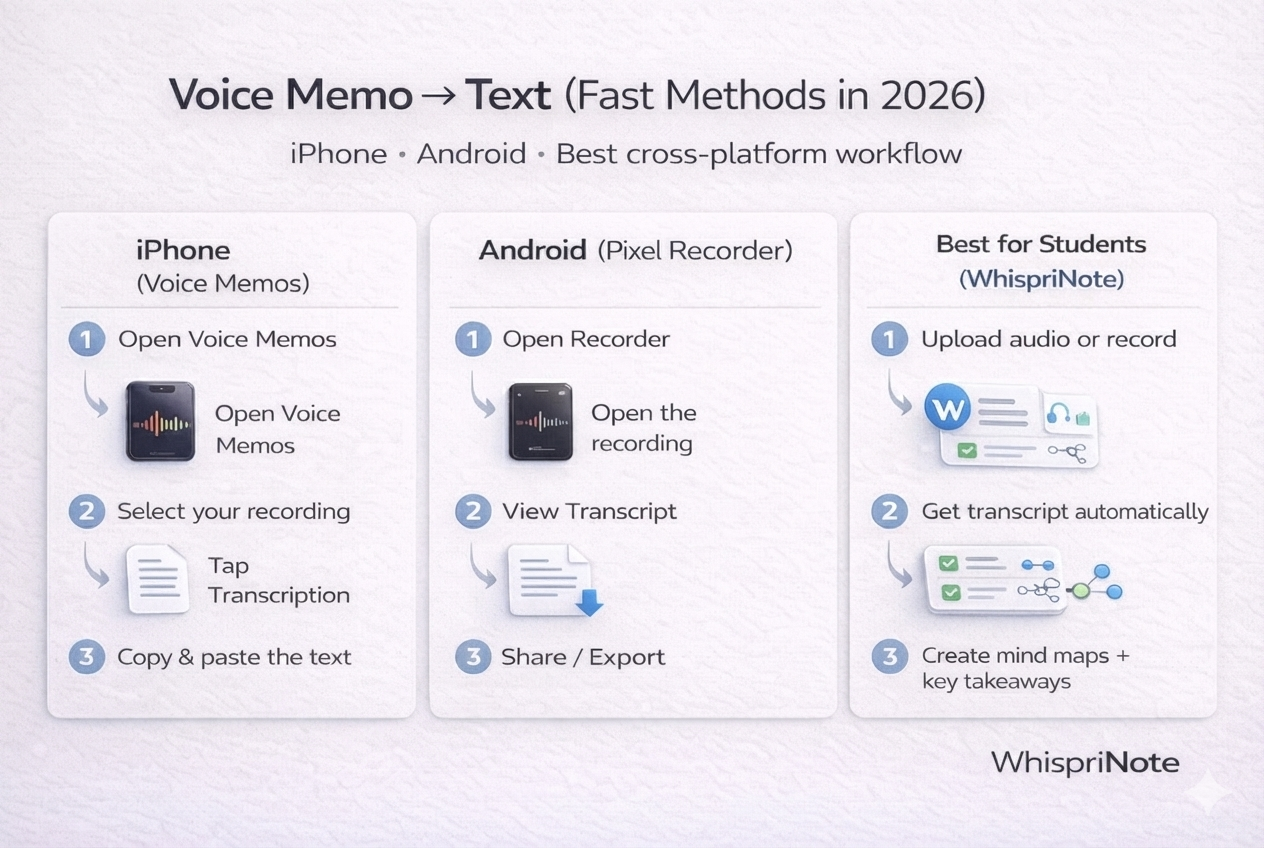
- iPhone: If your iPhone supports it, you can transcribe right inside Voice Memos.
- Android (Pixel): The Recorder app can generate and export transcripts.
- Any phone (best for students): Upload your audio to WhispriNote to get the transcript and automatically turn it into organized study notes.
Method 1: Transcribe Voice Memos on iPhone (Voice Memos app)
If your iPhone supports Voice Memos transcription, this is the quickest path.
Step-by-step
- Open Voice Memos.
- Tap the recording you want.
- Tap Transcription (or the transcript option).
- Copy the text and paste it into Notes, Google Docs, or wherever you need it.
Best for
- Short to medium recordings
- Quick copy/paste tasks
Not ideal for
- Turning transcripts into structured notes (headings, summaries, key terms, diagrams)
Method 2: Transcribe on Android (Pixel Recorder)
On many Google Pixel phones, the Recorder app can create transcripts and let you export/share them.
Step-by-step
- Open Recorder.
- Open the recording.
- Tap Transcript.
- Use Share/Export to copy the text out.
Best for
- Pixel users who want simple transcription fast
Not ideal for
- Converting raw transcripts into study guides automatically
Method 3 (Best workflow): Turn any voice recording into study notes with WhispriNote
Here's the problem with "just transcription":
A transcript is usually a messy wall of text.
If you're a student, you want:
- Clean headings
- Key takeaways
- Definitions
- Examples
- Exam-style summaries
- Sometimes even mind maps / flowcharts
WhispriNote is built for that.
Step-by-step (works on any device)
- Open WhispriNote.
- Upload your voice memo (or record directly).
- Get an automatic transcript.
- Generate structured notes (summary + key points + important terms).
- Optional: generate visual notes like mind maps and flowcharts.
Here is what the output can look like: