← Back to Blog

How to Download a Microsoft Teams Meeting Transcript (Step-by-Step, 2026)

By WhispriNote Team
December 25, 2025
5 min read
How to Download a Microsoft Teams Meeting Transcript (Step-by-Step, 2026)
WhispriNote
Try WhispriNote free
Paste a YouTube link to turn any lecture or tutorial into clean, structured study notes.

If you're here, you probably want one of these:

  • "Where do I even find the Teams transcript?"
  • "How do I download it (DOCX / VTT)?"
  • "Why is there no transcript button?"
  • "How do I turn this into usable notes?"

This guide is designed to get you from Teams -> downloaded transcript -> shareable notes with the fewest clicks.


Quick answer (fastest path)

Teams transcript download path (most common):
Chat -> past meeting chat -> Recap -> Download (choose DOCX or VTT)

If you don't see Recap or Transcript, jump to Troubleshooting below.


Where to find the Microsoft Teams meeting transcript (Recap)

Transcripts usually live inside Recap.

Option A: Find it from the meeting chat

  1. Open Microsoft Teams
  2. Go to Chat
  3. Open the past meeting chat
  4. Click Recap
  5. Open the Transcript section/tab (if you don't land there automatically)

Option B: Find it from the Teams calendar

  1. Open Calendar
  2. Click the past meeting
  3. Look for Recap / Meeting recap
  4. Open Transcript

Important: Recap shows up when the event was recorded or transcribed.


How to download a Teams transcript (DOCX or VTT)

Once you're inside Recap:

  1. Open Transcript
  2. Click the Download dropdown (sometimes it looks like a download arrow)
  3. Choose:
    • .DOCX (best for reading/editing)
    • .VTT (best for captions, video workflows, and timestamps)

Who can download the transcript?

In many setups, organizers and co-organizers can download by default. If you're a participant, you may need the organizer to enable access or share the file with you.


How to share a Teams transcript (especially with mobile participants)

If someone can't access Recap (common on mobile or restricted org settings), the simplest move is:

  1. Download the transcript to your computer
  2. Go to the meeting chat
  3. Attach / Upload the transcript as a file

Now everyone who can access the meeting chat file can view it.


No transcript button? Here are the most common reasons (and fixes)

1) Transcription was never started

A transcript only exists if someone started transcription during the meeting (or your org has it automated).

Fix for next time: During the meeting:
More actions (...) -> Record and transcribe -> Start transcription

2) You're not allowed to view/download it

Some orgs restrict transcript permissions (IT/admin policies).

Fix: Ask the organizer to:

  • download it and share it in chat, or
  • adjust who can access/download transcripts (if allowed)

3) You're in the wrong place

People often check the wrong chat thread (especially recurring meetings).

Fix: Open the exact meeting instance (date/time) -> then open Recap.

4) The meeting just ended

Sometimes Recap assets take a moment to appear.

Fix: Give it a few minutes, then re-open Teams and check Recap again.

5) It was a channel meeting

Channel meetings store things differently.

Fix: Check the channel -> Shared / Files area, and then open the meeting entry from there.
WhispriNote
Turn this workflow into notes in minutes
Get timestamps, summaries, and study-ready outputs without pausing the video.

6) Classic vs new calendar UI confusion

Some tenants show Recap differently.

Fix: Use the Chat -> past meeting chat -> Recap path (it's usually the most consistent).


Turn a Teams transcript into study notes (the part most people skip)

A raw transcript is searchable... but it's not fun to study. It's usually:

  • repetitive
  • full of filler words
  • hard to skim
  • missing structure (headings, key points, diagrams)

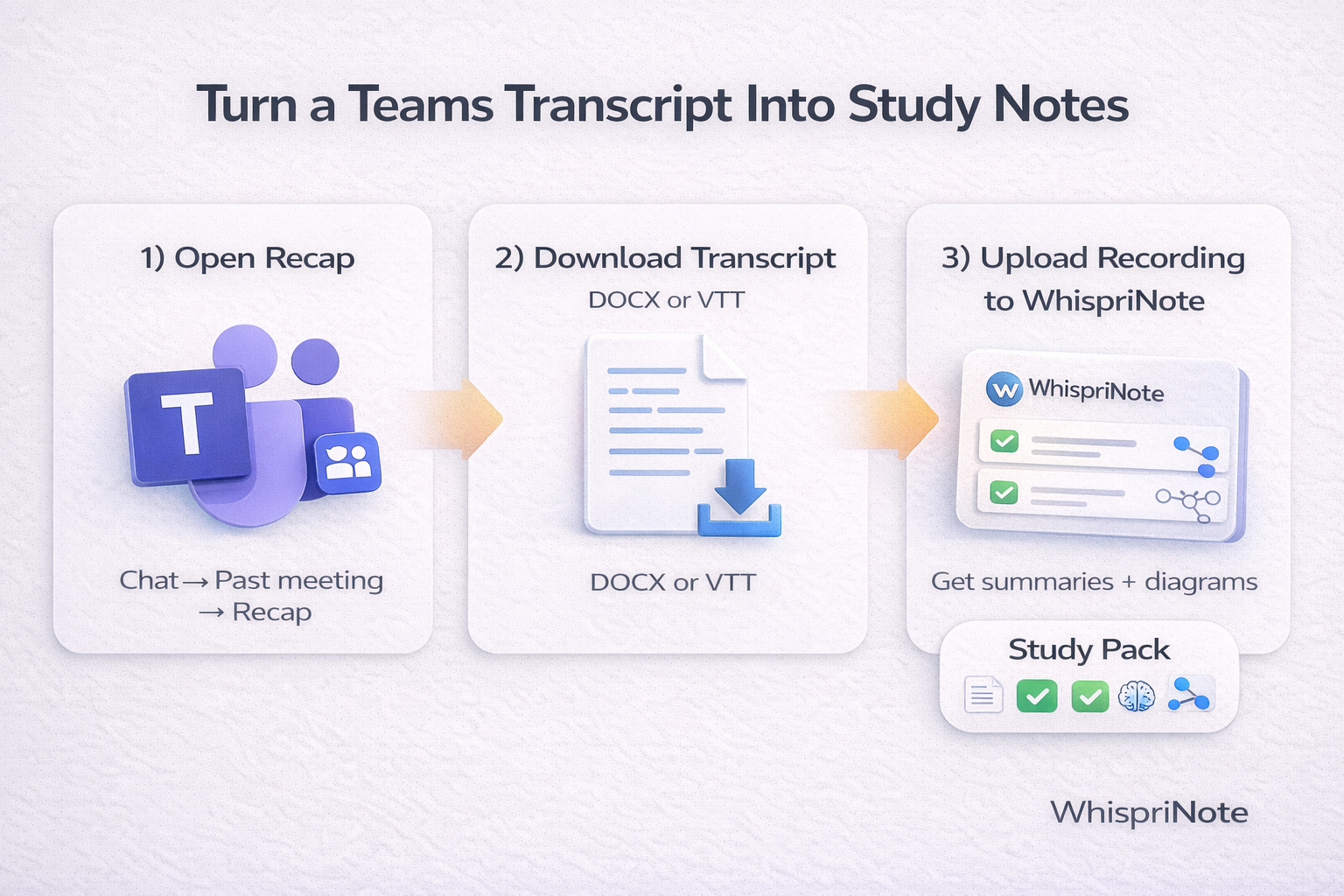
If you want a study-ready output, the fastest workflow is:

  1. Download the transcript (DOCX) for reference
  2. Download the meeting recording (if you're the organizer)
  3. Upload the recording to WhispriNote to generate:
    • clean summaries
    • key points
    • flowcharts / mind maps (when useful)
    • a review-friendly "study pack" you can revisit later

That is where WhispriNote shines: it turns a raw transcript or recording into visual notes (flowcharts, mind maps) plus a structured summary you can actually study.

Turn a Teams transcript into study notes workflow

Copy/paste prompt: clean up a Teams transcript instantly

If you only have text (no recording), use this prompt with your AI tool:

PROMPT: You are a study assistant. Convert the following Microsoft Teams meeting transcript into:

  1. 5-bullet summary
  2. key terms + definitions
  3. action items (if any)
  4. an outline with headings Keep it skimmable, remove filler, and preserve important technical details.

TRANSCRIPT: [PASTE HERE]


FAQ (targets high-intent keywords)

Can I download a Teams transcript as a Word document?

Often yes - Teams commonly offers DOCX download from Recap (depending on your org settings).

Can I download a Teams transcript as VTT?

Often yes - Teams commonly offers VTT (useful for captions and timestamped workflows).

Can attendees download the transcript?

Sometimes. In many setups, organizers/co-organizers can download by default, and others depend on org policy or organizer permissions.

Is there a transcript without recording?

Yes - transcription can exist without a recording if transcription was started during the meeting.


Get WhispriNote - Start free with up to 5 notes.

Bottom line: If your goal is simply "download the transcript," Recap gets it done.
If your goal is study-ready notes, use the transcript for reference - but run the recording through WhispriNote to get structure, clarity, and diagrams when they actually help.

Tags:
microsoft teams transcript
download teams transcript
teams recap
teams transcription
meeting notes
← Back to All Posts