You just finished a 90-minute YouTube lecture on microeconomics. The professor explained a key concept perfectly, but that knowledge is now "trapped" inside the video.
You need that explanation for your study guide.
So you hit pause. You rewind. You type what you hear. You pause again. It is slow, frustrating, and breaks your focus.
Then you have a "bright idea." You will just copy the transcript! You find the "Show transcript" button, copy the text, and paste it into a Word doc. Now you have a 50-page, jumbled mess of words and timestamps. The knowledge is still trapped, just in a different, messier format.
What if you could paste that YouTube link and, in 60 seconds, get a clean, accurate, and searchable text document? What if it also gave you a summary and list of main topics, all automatically?
You can. This guide shows you the slow, manual way to extract text, and then the smart way.
You can start turning YouTube videos into study notes for free on the YouTube to Notes page, iOS, or Android.
The Manual Method: How to Find YouTube's "Show Transcript" Button
YouTube does provide a built-in transcript for many videos. You just have to know where to find it. The process is different for desktop and mobile.
On a Desktop Browser (Chrome, Firefox, etc.)
- Go to the video. Open the YouTube video you want text from.
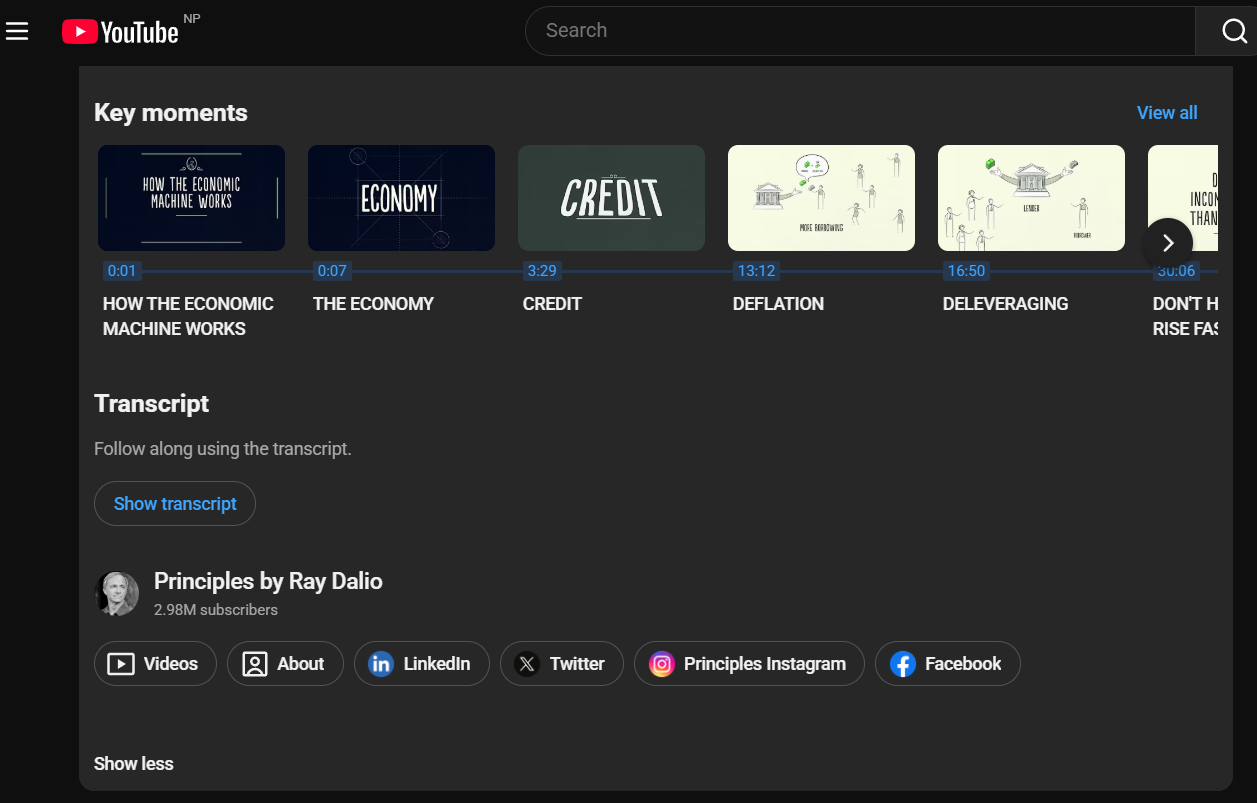
- Open the description. Look below the video player, in the description box. Click the "...more" button to expand the full description.
- Find the button. Scroll down past the main description. You will see a button labeled "Show transcript." Click it.
- View the transcript. A new "Transcript" panel will appear to the right of the video. This text is time-stamped and scrolls along with the video.
On a Mobile Phone (iOS and Android)
- Open the video in the YouTube app.
- Tap the video title to open the description area.
- Tap "...more" to expand the full description.
- Scroll down and tap "Show transcript". The transcript will appear below the video.
Pro-Tip: Once the transcript panel is open, you can click the three dots inside the panel to "Toggle timestamps". This removes the time codes, making the text slightly cleaner for copying.
But, as you are about to see, this does not solve the main problems.
The Big Problem: Why Copy-Pasting Transcripts Is a Waste of Time
Okay, so you found the transcript. You highlight the text, hit "Copy," and paste it into your notes. This is where the real frustration begins.
Here is why this "free" method often costs you more in time.
Problem 1: The Formatting is Unusable This is the biggest issue. When you paste the transcript into Microsoft Word or Google Docs, the formatting breaks completely. You get text with only 3-7 words per line, turning a 5-page transcript into a 50-page document. Or, words run together with no spaces, like "theenvironment". You will spend the next 30 minutes just fixing the formatting. That is not studying.
Problem 2: The Text is Full of Errors YouTube's transcripts are auto-generated by a machine. They are not checked by a human. The accuracy is often low, sometimes as low as 70%. This gets much worse with:
- Technical Words: For medical students or engineering students, a transcript that guesses at complex terms is worse than useless. It can create "medically significant errors".
- Accents: The system struggles with speakers who have accents.
- Background Noise: Any noise in the video will confuse the AI. An inaccurate transcript means you cannot trust the notes you are reading.
Problem 3: The "Show Transcript" Button is Often Missing You will not find this button for every video. This makes it an unreliable study method. The button is often missing because the video creator disabled captions, the audio quality is too poor, or the video is very new and the transcript is still processing.
This "free" solution forces you to spend more time (on formatting and fact-checking) than you were trying to save. It is a "solution" that creates more work.
The "Smarter" Way: Using an AI Video-to-Text Tool
So, the manual method is slow, messy, and unreliable. There is a much better way.
Instead of you pulling the flawed text out of YouTube, you can have an AI note-taking tool do the work for you.
It does not just copy YouTube's text. It uses its own advanced AI to process the video's audio from scratch.
Let's break down the process:
- You Give it the Link. You copy the YouTube video's URL.
- The AI "Listens." The tool fetches the audio stream.
- It Transcribes Accurately. It uses a high-quality speech-to-text engine to create a clean, accurate, and properly punctuated transcript.
- You Get a Clean Note. The output is a simple text file or an editable note. No jumbled text. No timestamps.
This process turns a passive video into an active study asset. To see exactly how this technology works, read our guide on how AI turns lectures into organized notes.
How to Get Clean, Accurate Text from YouTube (Step-by-Step)
This is a much better way to get your notes.
Step 1: Get Your Video Link Go to YouTube and copy the URL of your lecture video.
Step 2: Paste the Link into Whisprinote In Whisprinote, find the "YouTube" or "Video" import option. Paste your link. The AI will begin processing the video in the background.
Step 3: Get Your Clean Text and AI Summary In just a few minutes, you will get a complete, clean, and editable transcript. But you will also get something better: an AI-generated summary of the entire video and a list of the main topics discussed.
Step 4: Review and Study This is the most important step. Read the AI summary to lock in the main concepts. Then, use the searchable transcript to find specific details or definitions. You are not just getting text; you are using knowledge.
This is a complete shift in studying. Learn more about why students are using AI for smarter note-taking.