Short answer: grab the YouTube transcript, clean it, turn sections into Q and A pairs, then import into Anki or Quizlet. For the fastest path, use YouTube-to-notes to generate structured notes first.
Quick verdict (2026)
- Best manual path: transcript -> clean text -> section headings -> Q and A cards.
- Fastest path: YouTube-to-notes then export to flashcards.
- If the transcript is missing, use YouTube transcript not showing fixes.
- For longer videos, visual notes, PDF exports, and voice chat with your notes, check pricing.
At a glance
| Step | Output | Best for |
|---|---|---|
| Get transcript | Clean text | Any lecture or tutorial |
| Outline sections | Structured notes | Fast summarization |
| Q and A cards | Anki import | Recall and exams |
| Sets and terms | Quizlet import | Quick review |
Step 1: Get the YouTube transcript
- Open the video on YouTube (desktop is best).
- Click Show more in the description.
- Click ... and choose Show transcript.
- Turn timestamps off in the transcript panel.
If you do not see the transcript option, use this guide: YouTube transcript not showing fixes.
Step 2: Clean and structure the transcript
Before you make flashcards:
- Remove timestamps and filler words.
- Add headings for each topic section.
- Pull out definitions, steps, and formulas.
Need a full walkthrough? See How to turn a YouTube transcript into notes.
Step 3: Make Anki flashcards
Fastest workflow (Q and A CSV):
- Create a two-column sheet: Front (question) and Back (answer).
- Add one fact per row.
- Export as TSV or CSV and import into Anki.
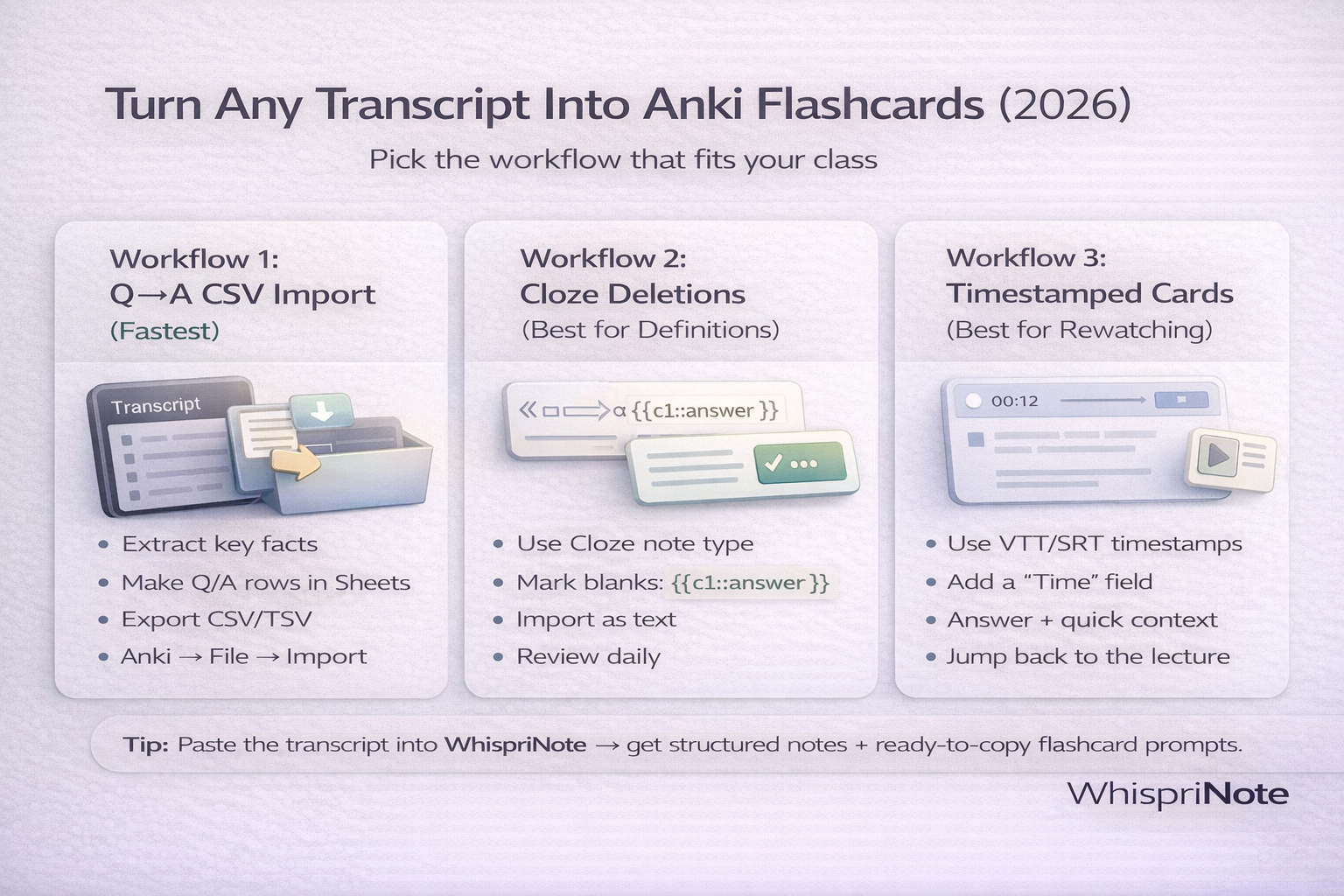
Choose a workflow that matches your class style.
When to use cloze cards: definitions, laws, and step sequences.
Step 4: Make Quizlet sets
- Build a list of terms and definitions from your notes.
- Use Quizlet import and paste terms on the left, definitions on the right.
- Keep each card short for faster recall.
Short term-definition pairs work best in Quizlet.
Add visuals for tough topics
For sequences or timelines, visuals help before you make cards:

Timeline visuals help when the lecture follows a sequence.
Fast workflow: YouTube transcript to flashcards in minutes
If you want to skip manual cleanup:
- Paste the link into YouTube-to-notes.
- Generate structured notes and summaries.
- Export or upgrade for longer videos on pricing.