If you searched "Zoom transcript", you probably want one of these outcomes:
- Download the transcript file (usually .VTT or .TXT)
- Copy the full transcript text for notes or a study guide
- Fix the classic issue: "I recorded it, but there is no transcript"
This guide shows the fastest working methods (updated for 2026), then a simple way to turn that transcript into clean study notes without spending hours formatting.
The fastest answer (pick your situation)
| Your situation | Best method | What you will get |
|---|---|---|
| You recorded to Zoom Cloud | Audio Transcription | .VTT transcript file |
| You want transcript during the meeting | Save Captions | .TXT transcript file |
| You recorded to your computer | Save CC as VTT (if enabled) | .VTT caption file (or .TXT via Save Captions) |
| You are a participant (not host) | Ask host for the transcript, or use live captions if allowed | Depends on host settings |
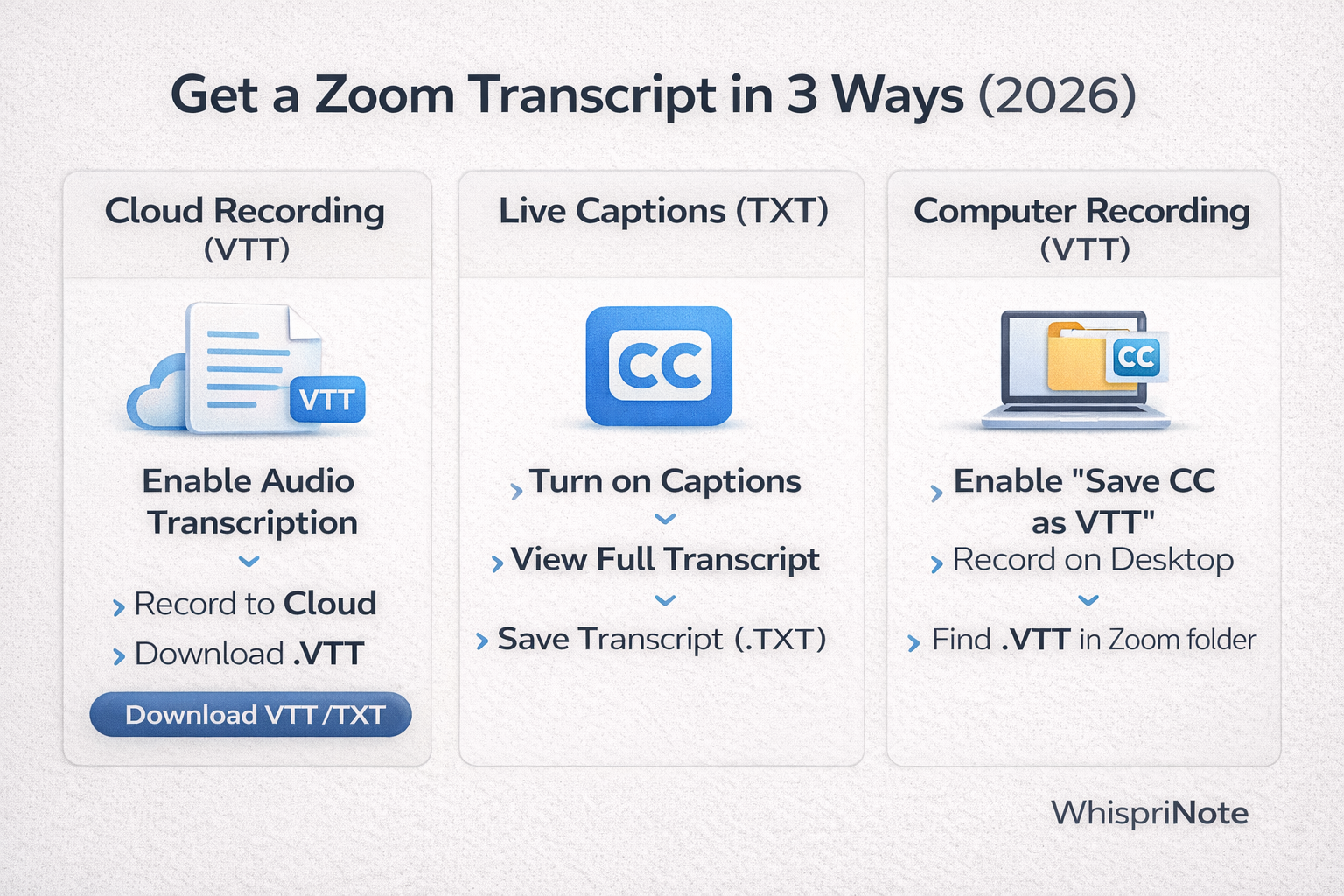
Method 1 (Best): Get a transcript from a Zoom Cloud Recording (VTT)
This is the cleanest option because Zoom generates a separate transcript file you can download.
Step-by-step
- Make sure the meeting is recorded to the cloud (host or admin setting).
- Enable Audio Transcription for cloud recordings (account or admin setting).
- Start the meeting and record to cloud.
- After the meeting ends, the transcript is processed and appears as a .VTT file next to the recording.
- Download the .VTT file and open it in any text editor (or convert it to clean paragraphs using the tips below).
What you will see: the recording files plus an Audio transcript (.VTT) entry.
Method 2 (Free + useful): Save Live Captions as a TXT transcript
If captions are enabled in the meeting, Zoom can let you save the transcript locally during the call.
Step-by-step
- Join the Zoom meeting on desktop (Windows, Mac, or Linux).
- Turn on Captions (or Show captions).
- Open the transcript panel (View full transcript).
- Click Save transcript and Zoom saves a .TXT file on your computer.
This is perfect if:
- You are not the host
- There is no cloud recording
- You just need the words for notes
Method 3: Transcript from a Computer (Local) Recording (VTT if enabled)
If you record to your computer, you may be able to save captions as a VTT file, but it depends on account settings and whether captions were used.
What to do
- Ensure your account allows computer recording and "Save closed caption as a VTT file."
- Record the meeting on desktop.
- After the meeting, check your Zoom recording folder for caption or transcript files.
If you do not see a VTT file, use Method 2 (Save Captions to TXT) next time.
If your Zoom transcript is missing: quick fixes that work
1) You recorded locally (computer), not cloud
Cloud recording is the most reliable way to get an automatic transcript file. If you only recorded locally, you might not get a separate transcript unless captions or transcript saving was enabled.
2) Audio transcription was not enabled (cloud recordings)
Even with cloud recording, transcripts will not appear if audio transcription was not enabled for the account.
3) You are a participant
Many transcripts are only visible to the host or organization. Ask the host to:
- share the transcript file, or
- share the recording with transcript enabled