If you're here, you probably have one goal: download a Webex transcript so you can save it, share it, or study from it.
The confusing part is that Webex transcripts can come from two different places:
- During a live meeting (via Captions / AI Assistant)
- After the meeting (from a recording's transcript panel)
This guide shows both - plus quick fixes if the transcript is missing.
Quick answer (30 seconds)
- In a live meeting: open Captions -> open the Transcript panel -> Download / Save transcript (if your org allows it).
- After the meeting: open your Webex recording -> go to Transcript -> Download.
If you don't see these options, jump to: "Why you can't find the Webex transcript" below.
Before you start (so you don't waste time)
A Webex transcript usually requires captions + transcription to be enabled.
Check these boxes:
- You're using the Webex desktop app or Webex web app (best support).
- The meeting has Captions available.
- Your org/admin didn't disable saving transcripts.
- If it's a recording transcript: the recording is fully processed (sometimes it takes a while).
How to download a Webex transcript during a meeting (live)
This is the fastest method if the transcript panel is available.
Step-by-step
- Join the Webex meeting on desktop (or web).
- Click CC / Captions to turn captions on.
- Open the Transcript view (often inside the captions panel).
- Look for Download transcript or Save transcript.
- Save the file to your computer (commonly TXT or similar export).
If you're a participant (not the host)
In many orgs, participants can still download if the host/admin has enabled it. If you don't see the download option:
- Ask the host to enable captions/transcription
- Or ask them to export the transcript and share it
How to download a Webex transcript from a recording (after the meeting)
If your meeting was recorded, Webex often provides a transcript next to the recording playback.
Step-by-step
- Sign in to your Webex account.
- Open Recordings (or your meeting history).
- Click the meeting recording you want.
- Open the Transcript panel next to the video.
- Click Download (export format depends on account/org settings).
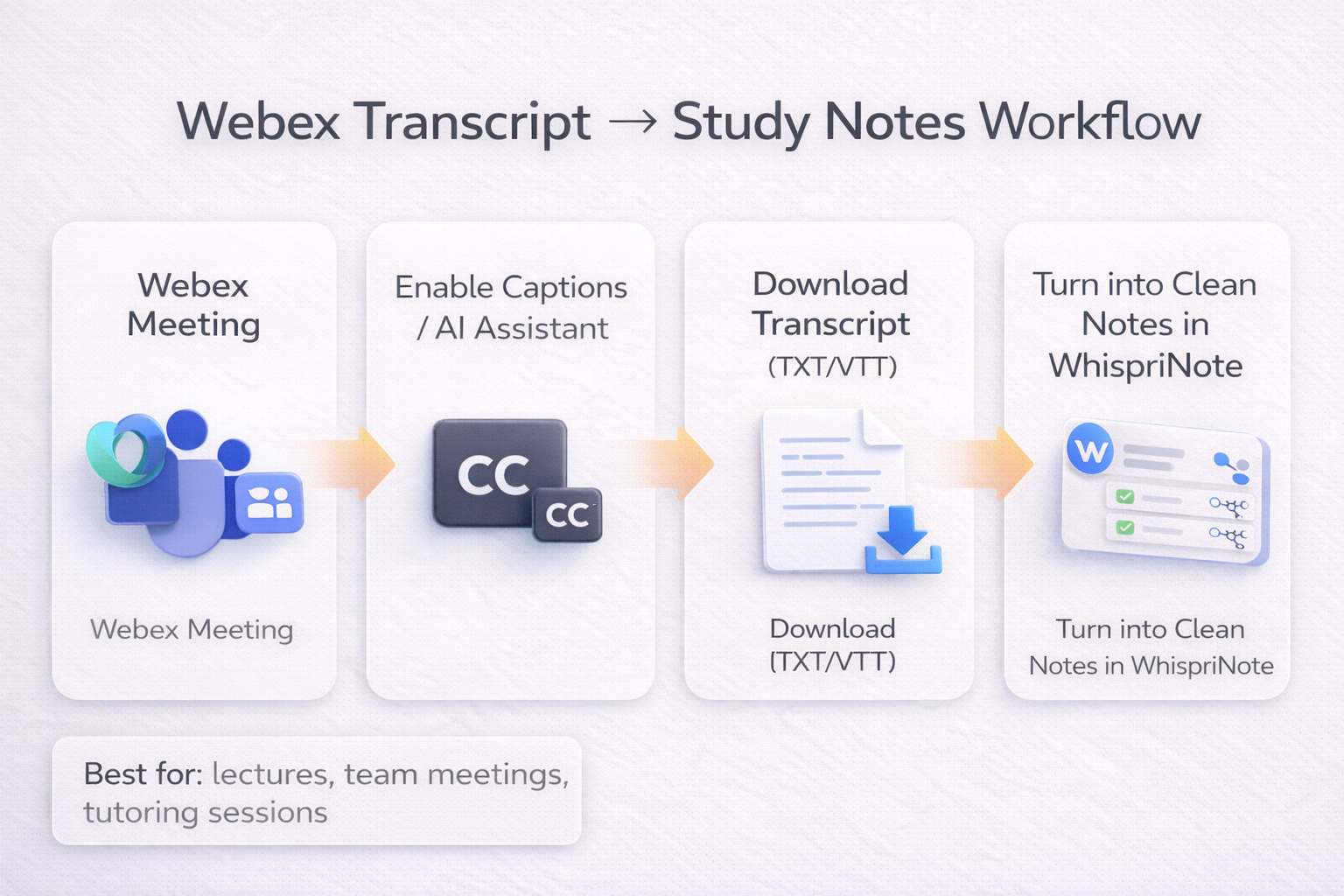
Tip: If the transcript looks messy (timestamps, speaker switches, filler words), don't stress - WhispriNote can turn the recording into clean notes even if the raw transcript is ugly.
Inline workflow (Webex -> WhispriNote)
Why you can't find the Webex transcript (common fixes)
If "download Webex transcript" is not showing up, it's usually one of these:
1) Captions or transcription isn't enabled
No captions/transcription = no transcript panel to export.
Fix: Turn on Captions (CC) during the meeting, or ask the host to enable it.
2) Your admin disabled transcript saving
Some organizations allow captions but block transcript downloads.
Fix: Ask your Webex admin to enable transcript saving (or ask the host to export it).
3) The recording transcript isn't ready yet
Transcription can take time after the meeting ends.
Fix: Wait a bit, then refresh the recording page and check again.