Note on accuracy: transcript and caption controls vary by campus, admin settings, and which tool your LMS is embedding (Zoom, Teams, Panopto, Kaltura, Echo360, and others). This guide focuses on the most common reasons the button disappears and the fastest fixes.
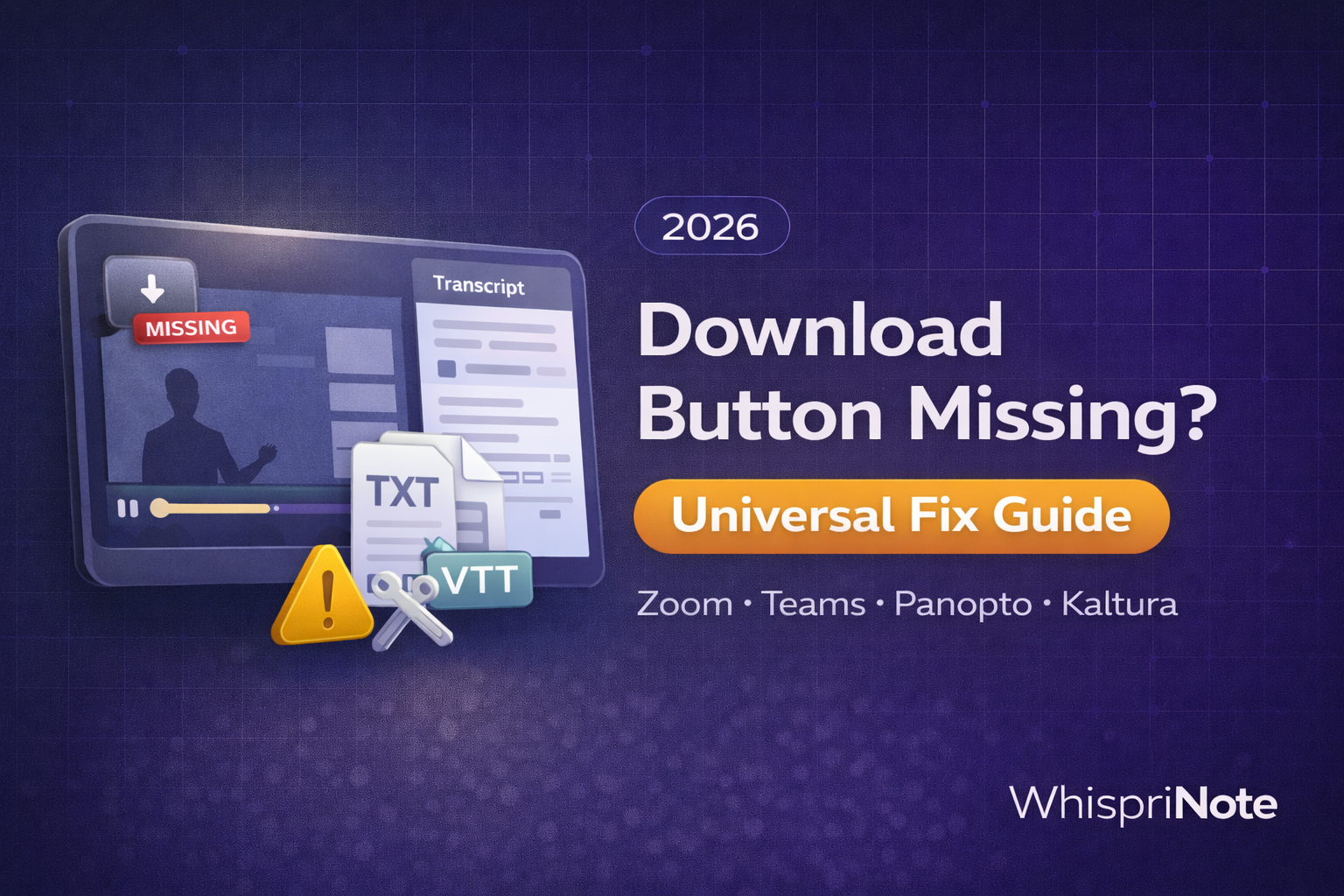
If you just want the quick answer, in most cases the download button is missing because:
- captions or transcripts have not been generated yet
- you are in an embedded player that hides controls
- you do not have permission to export
Jump to your platform guide (if you already know it)
These are the full step-by-step platform pages:
- Canvas Studio transcript download
- Echo360 transcript download
- Kaltura transcript download
- Panopto transcript download
- Zoom transcript download
- Google Meet transcript download
- Microsoft Teams transcript download
- Webex transcript download
If you are not sure which tool your LMS is using, keep reading. This guide helps you identify it fast.
The 5-second diagnosis (find the real reason)
If you can see transcript text but cannot download it, you are usually dealing with a hidden menu or a permissions limit.
If you cannot see transcript text at all, either:
- captions or transcripts were never generated, or
- you are in an embedded view that hides transcript tools, or
- the recording owner disabled transcript visibility.
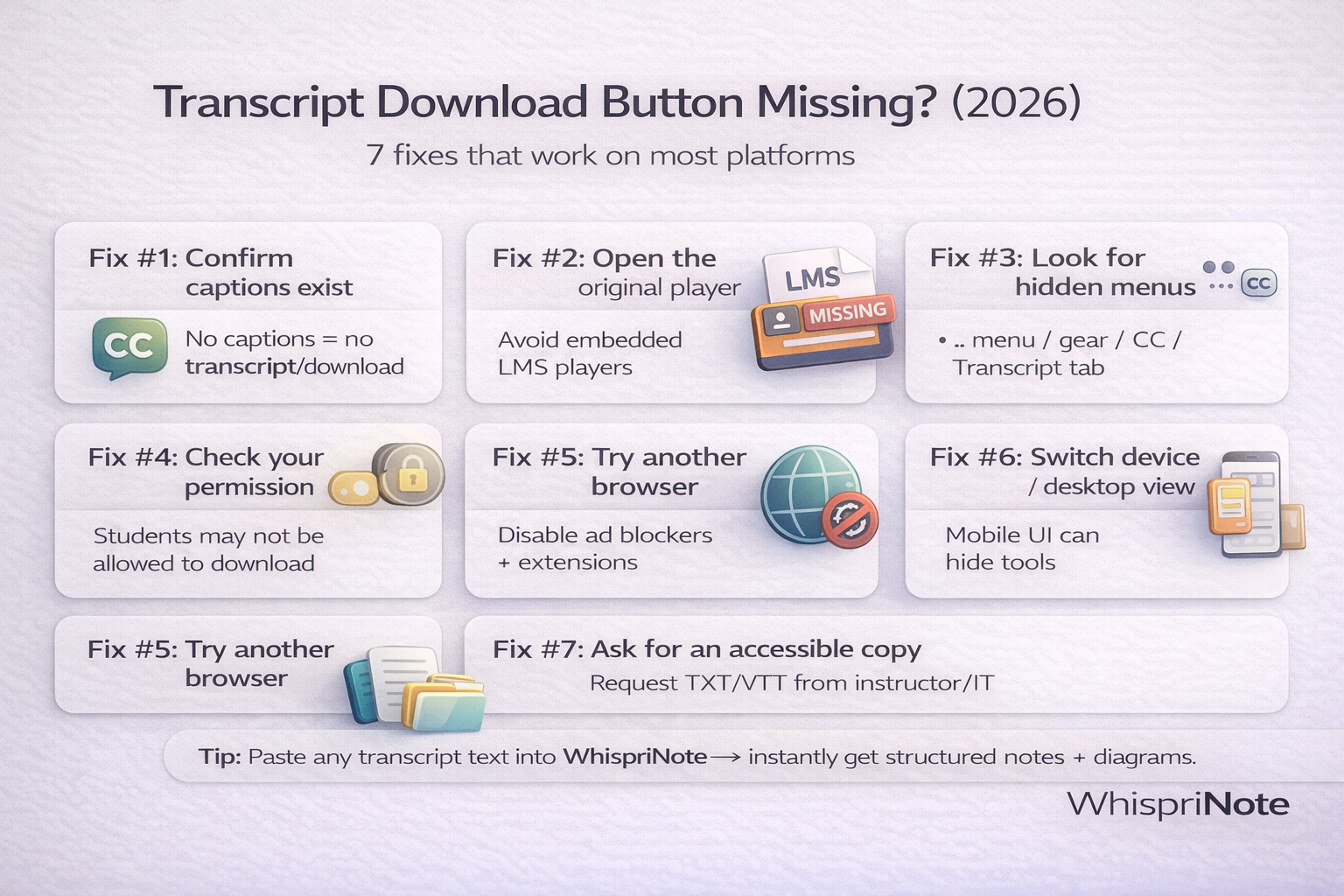
Universal Fix #1: Confirm captions or transcripts exist
This is the number one cause.
No captions = no transcript = no download button.
What to check:
- Is there a CC toggle anywhere?
- Is there a Transcript tab or panel?
- Do you see any text at all when you open Settings (gear) or More (three dots)?
If you find nothing, you likely need the instructor or owner to:
- enable captions or transcription,
- wait for processing to finish,
- or upload a captions file.
Universal Fix #2: Open the original player (avoid embedded LMS views)
Many missing download button issues happen because you are watching the video inside:
- a module page,
- an embedded frame,
- or a restricted student view.
Fix: look for any of these links or buttons:
- Open in new tab
- View in Panopto, Kaltura, Echo360, or Zoom
- Watch on Media Gallery or My Media
- a pop-out or external link icon
Once you are in the native portal or player, download options often appear.
Universal Fix #3: Check the hidden menus (where the button usually hides)
On most platforms, the download option is under one of these:
- More (three dots)
- Settings (gear)
- Transcript panel (download icon at top)
- Captions tab (download or export)
- CC menu (sometimes contains transcript tools)
If you can see transcript text, scan the transcript panel header for:
- a down arrow icon
- Download
- Export
- Get captions
- Download transcript
Universal Fix #4: You might not have permission (very common for students)
Even if a transcript exists, many campuses restrict who can export it.
Examples of common restrictions:
- only the meeting organizer or host can download
- only the video owner or editor can export captions
- downloads disabled by IT policy for privacy or compliance
Fast path: ask the owner or instructor to download and share the TXT or VTT file.
Copy and paste request (email or LMS message)
Subject: Transcript export request (TXT or VTT)
Hi [Name],
I am trying to study from the recording, but my view does not show a transcript download option.
Could you export and share the transcript or captions file (TXT or VTT) for: [Recording title + date]?
Thank you!
[Your name]
If your goal is studying, here is the fastest workaround
If you just want usable notes (not a file), skip the download step:
- Copy any transcript text you can access (even partial)
- Paste into WhispriNote
- Generate structured notes and visual diagrams (flowcharts or mind maps)

Universal Fix #5: Browser extensions can break transcript UI
Transcript panels often fail silently when:
- ad blockers strip elements
- privacy extensions block scripts
- aggressive tracking protection breaks embedded media
Try this checklist: