← Back to Blog

Panopto Transcript (2026): How to Download Captions (VTT/SRT) + Study Faster

By WhispriNote Team
December 25, 2025
4 min read
Panopto Transcript (2026): How to Download Captions (VTT/SRT) + Study Faster
WhispriNote
Try WhispriNote free
Paste a YouTube link to turn any lecture or tutorial into clean, structured study notes.

If your lectures live in Panopto, you have probably searched for one simple button:

"Download transcript."

Sometimes it is there. Sometimes it is hidden behind settings. Sometimes you download a weird file like .ASHX and nothing opens.

This guide gives you the exact steps (for both full Panopto and embedded videos in your LMS) plus quick fixes when the download option is missing.

Official Panopto help page (download captions): Download captions in Panopto


The 30-second answer (do this first)

  1. Open the Panopto video.
  2. Click More / Settings (often the three-dot menu).
  3. Go to Captions.
  4. Click Download file (or Download transcript, depending on your school's setup).

If you do not see captions or caption settings at all, jump to "Why the download button is missing" below.
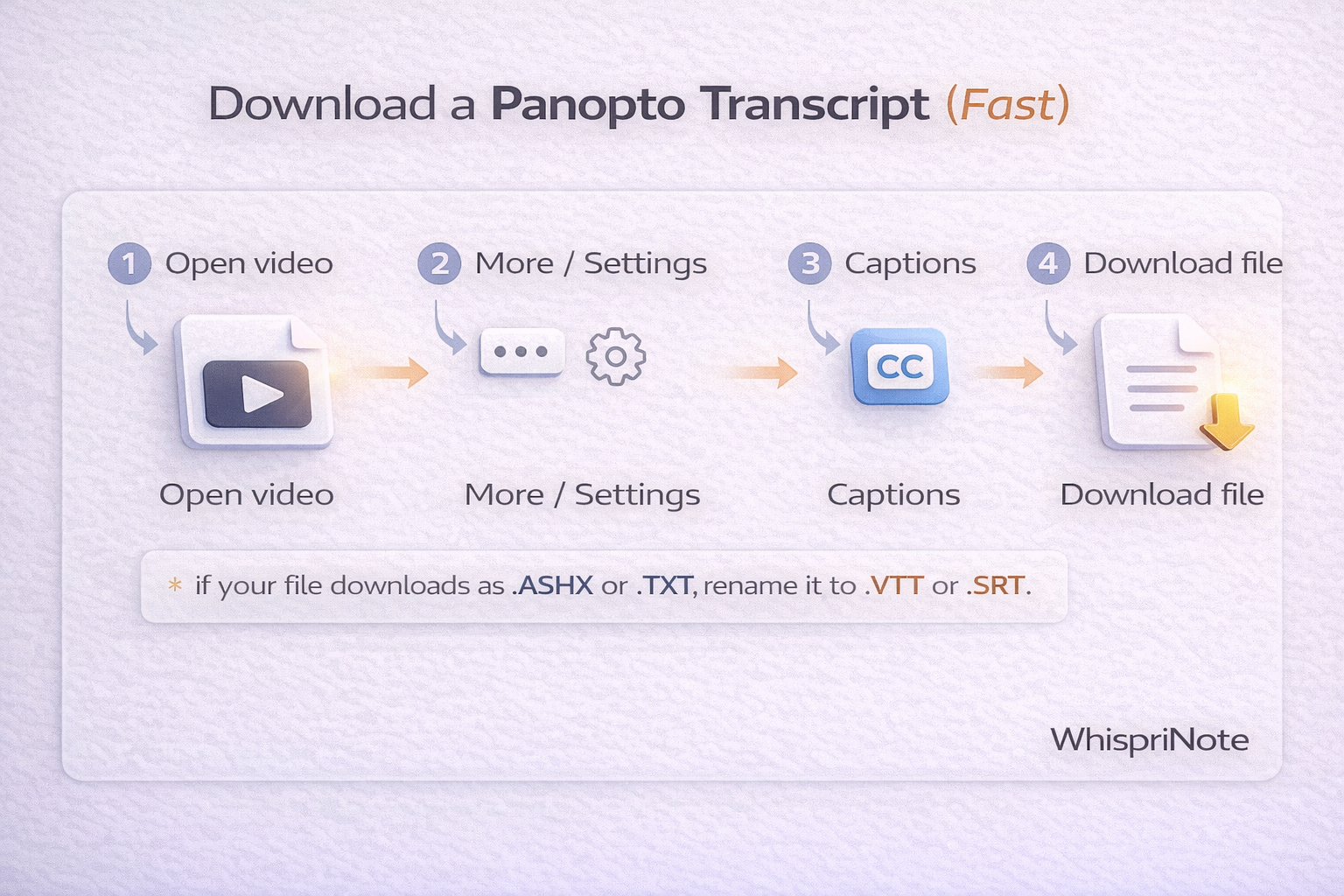

Panopto transcript download steps


If the video is embedded in your LMS

Embedded Panopto players often hide settings. Do this:

  • Click the pop-out/expand icon to open the full viewer.
  • Go to Settings -> Captions -> Download file.

If the download is .ASHX or .TXT

  1. Open the file in a text editor.
  2. If you see timestamped captions, rename it to captions.vtt or captions.srt.

Tip: If it is plain text, keep it as .TXT and use it as reading notes.


Missing download button? Quick checks

  • Captions are not enabled for the video.
  • Your role does not allow transcript downloads.
  • Captions are still processing after upload.

If any of these are true, ask the instructor/admin or try again later.


The better option for studying: WhispriNote

Downloading captions is only half the job. Most students still need clean notes, key points, and visuals to study fast.

With WhispriNote you can upload lecture audio/video and get:

  • A clean transcript
  • Structured notes (summary + key points)
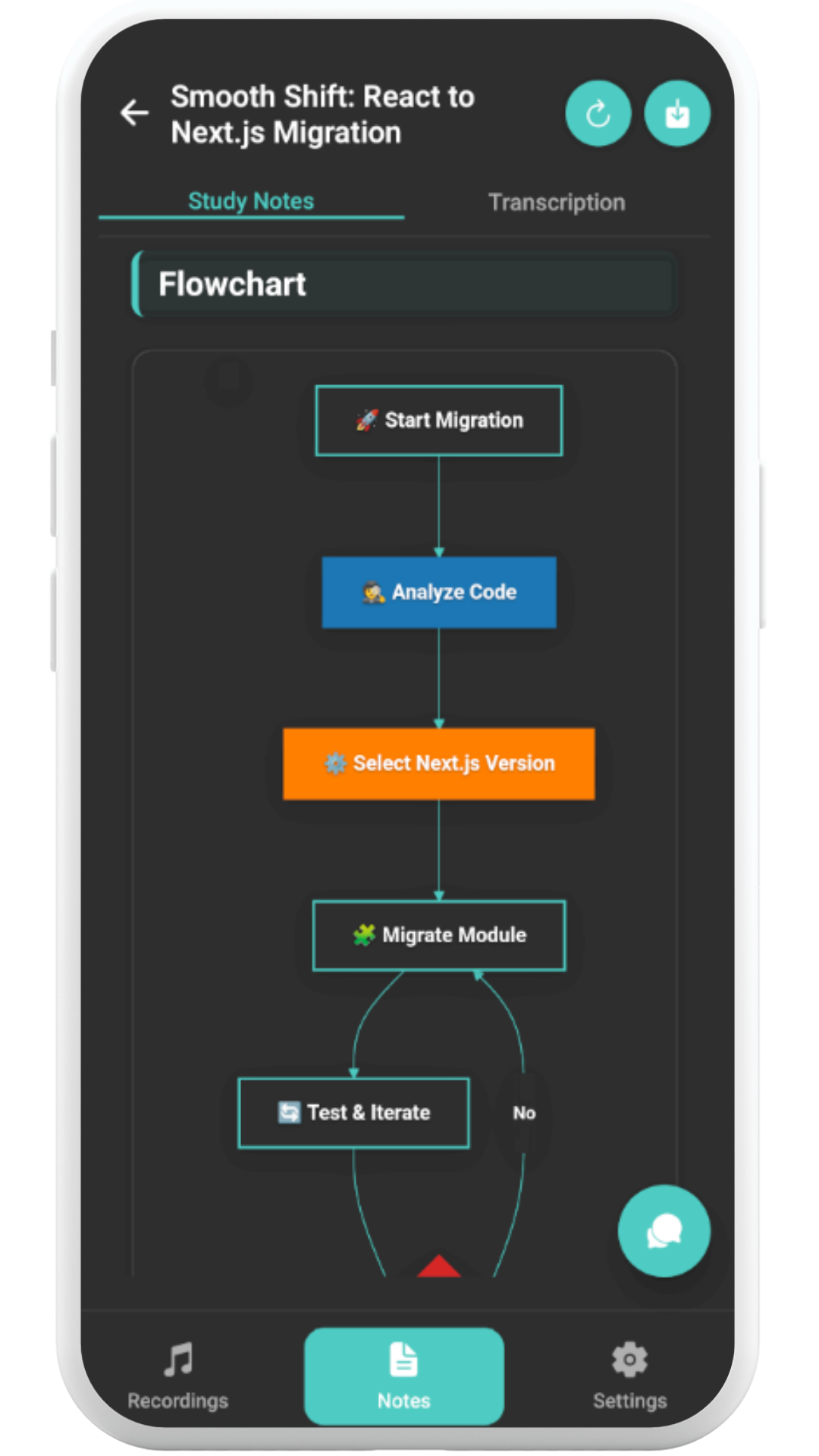
  • Visual diagrams (mind maps, flowcharts, timelines)
  • A searchable library for exams

Here is what it looks like on mobile:
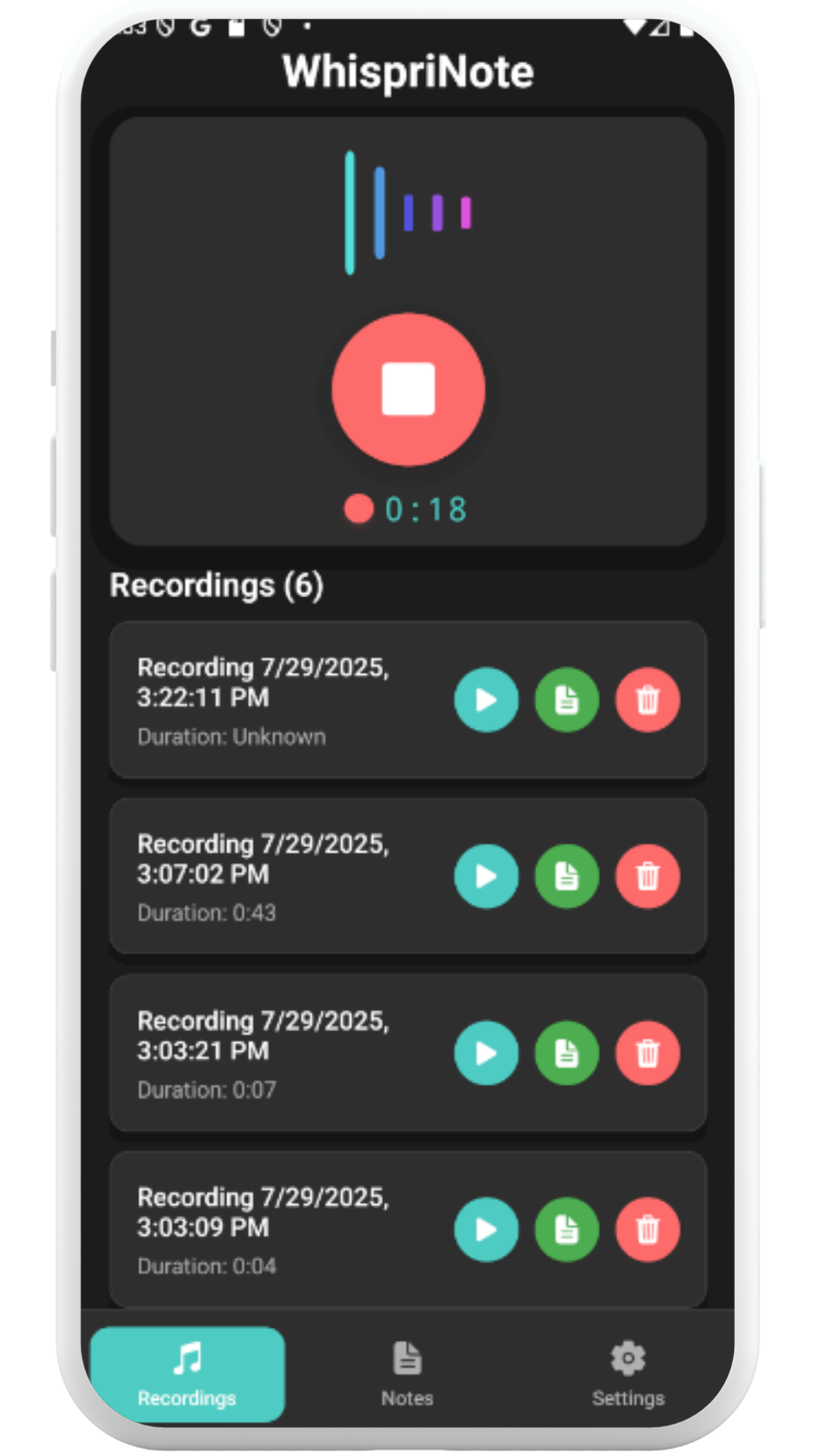
WhispriNote mobile recording screen
Record lectures on mobile and capture clean audio fast.
WhispriNote mobile flowchart screen
Auto-generated flowcharts for process-heavy topics.

WhispriNote study notes example

WhispriNote
Turn this workflow into notes in minutes
Get timestamps, summaries, and study-ready outputs without pausing the video.
Sample structured notes generated from a lecture.

Learn more:


FAQ: Panopto transcript download (2026)

Can I download a Panopto transcript as a Word document?

Panopto exports text-based formats (TXT/VTT/SRT). Paste into Word or Google Docs and format.

Why is my Panopto transcript file called .ASHX?

It is a handler file that still contains captions. Open in a text editor and rename to .VTT.

What if my Panopto video has no captions?

There is nothing to download. Ask the instructor/admin to generate captions or export a transcript.


Bottom line

Use Panopto's Settings -> Captions -> Download file to get the transcript fast.

If you want study-ready output (not raw captions), use WhispriNote to turn lectures into structured notes and visuals in minutes.


Start Studying Smarter Today

Ready to improve your note-taking? Here is your action plan:

Get WhispriNote - Start free with up to 5 notes.

Or continue on the WhispriNote web app.


Keep Learning

Explore more articles on our blog.


Last updated: 2025-12-25 - Reading time: ~3 minutes

Tags:
panopto transcript download
download panopto captions
panopto vtt
panopto srt
lecture transcript
study workflow
← Back to All Posts