If you searched "download Kaltura transcript", you are probably in one of these situations: your professor posted a lecture in Kaltura, you can see the transcript, but you cannot figure out how to download it as a TXT (or export captions as SRT/VTT).
Good news: Kaltura supports multiple setups (Canvas My Media, MediaSpace, player transcript widget). The downside is that the buttons move depending on your campus. This guide covers the fastest paths.
Quick tip: In Kaltura, captions usually mean a timed file like .srt or .vtt. A transcript is usually a plain .txt file.
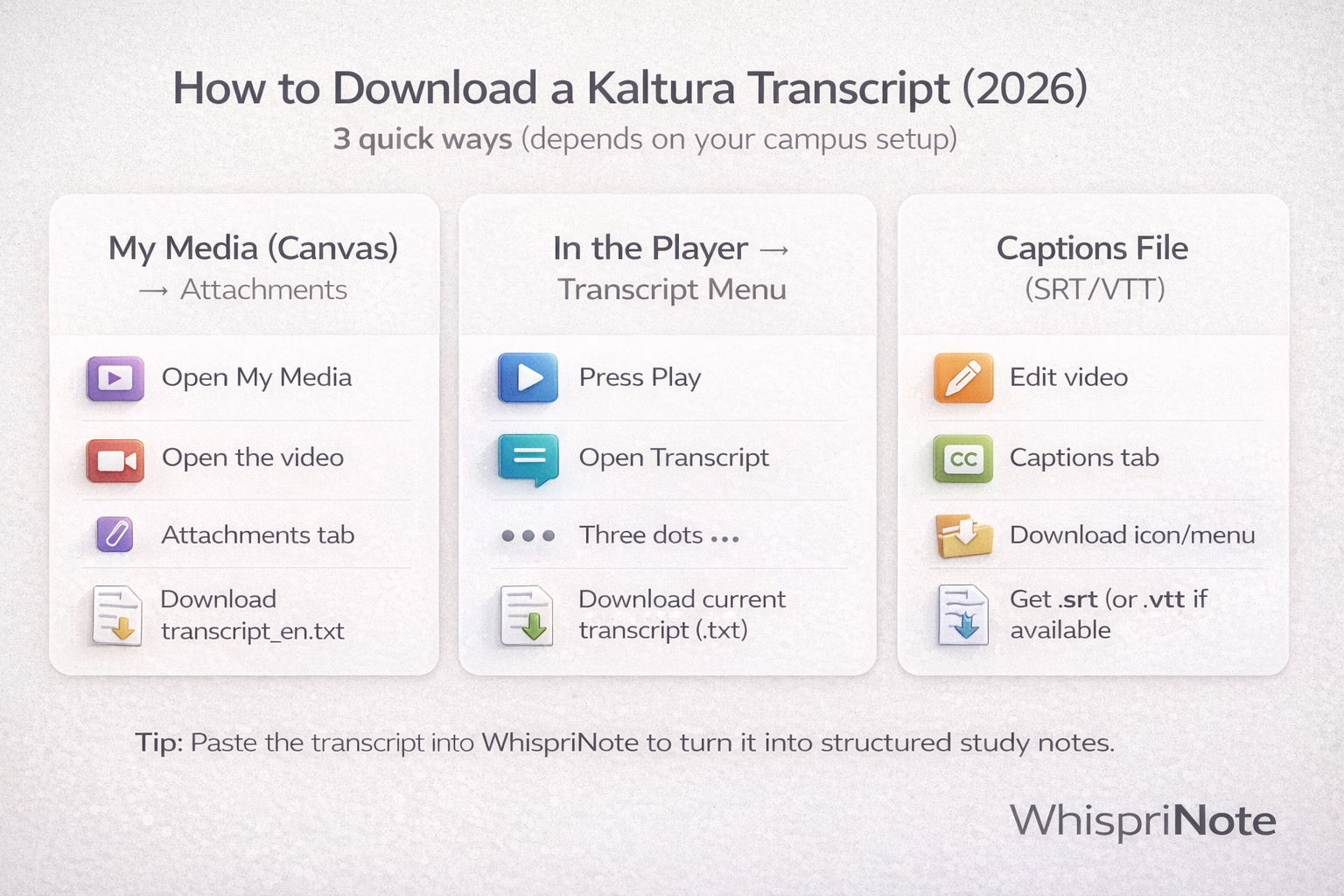
Quick answer (most people)
Try these in order:
- Canvas / My Media -> Attachments -> download
transcript_en.txt - Play the video -> open Transcript -> (three dots) -> Download current transcript
- If you need a timed captions file: Edit video -> Captions tab -> download SRT/VTT
Method 1: Download the transcript TXT from My Media (Canvas setup)
This is the most common campus flow when Kaltura is connected to Canvas.
- Open Canvas and go to My Media (Kaltura)
- Find the lecture video and click the title
- Under the video, open the Attachments tab
- Look for a file like
transcript_en.txt(names vary) - Scroll horizontally if needed, then click the download icon
What you get: a .txt transcript you can copy, search, highlight, and paste into notes.
Method 2: Download the transcript from the Kaltura player (Transcript widget)
Sometimes you do not see Attachments at all, but you do see the transcript beside or below the video.
- Click Play (some controls only appear after playback starts)
- If you do not see it, open the Transcript panel/icon
- Click the three dots in the transcript panel
- Choose Download current transcript
What you get: usually a .txt transcript.
Method 3: Download captions (SRT/VTT) instead of plain transcript
If you are trying to edit subtitles, create flashcards with timestamps, or upload captions somewhere else, you want the captions file.
Option A (common): Edit video -> Captions tab
- Open the video in Kaltura
- Click Edit (pencil icon) if you have permission
- Go to the Captions tab
- Click the download option next to the captions track
Option B (admin/pro): Kaltura Management Console (KMC)
If you are an admin or have KMC access, caption download can also appear under the entry's Captions section.
What you get: usually .srt (sometimes .vtt depending on setup).
Why you might not see the download button (fixes)
Here are the most common reasons students get stuck:
1) The transcript is not finished processing yet
If the lecture was uploaded recently, captions/transcript may still be generating. Check again later.
2) You do not have permission to edit or export
Some campuses restrict downloads unless you are the owner or a co-editor. If Edit is missing, you may only be able to use the in-player transcript (Method 2), or you may need to ask the instructor.
3) The transcript widget is disabled in that player
Some players do not show the transcript panel at all. If you never see transcript controls, use Method 1 (My Media -> Attachments) or ask the course admin.