If your school uses Echo360 (EchoVideo) for recorded lectures, the transcript can turn a 60-minute lecture into something you can search, skim, and study.
This guide shows you exactly how to download an Echo360 transcript as TXT or VTT, what to do if the download button is missing, and the fastest way to convert the transcript into study-ready notes.
TL;DR (fastest method)
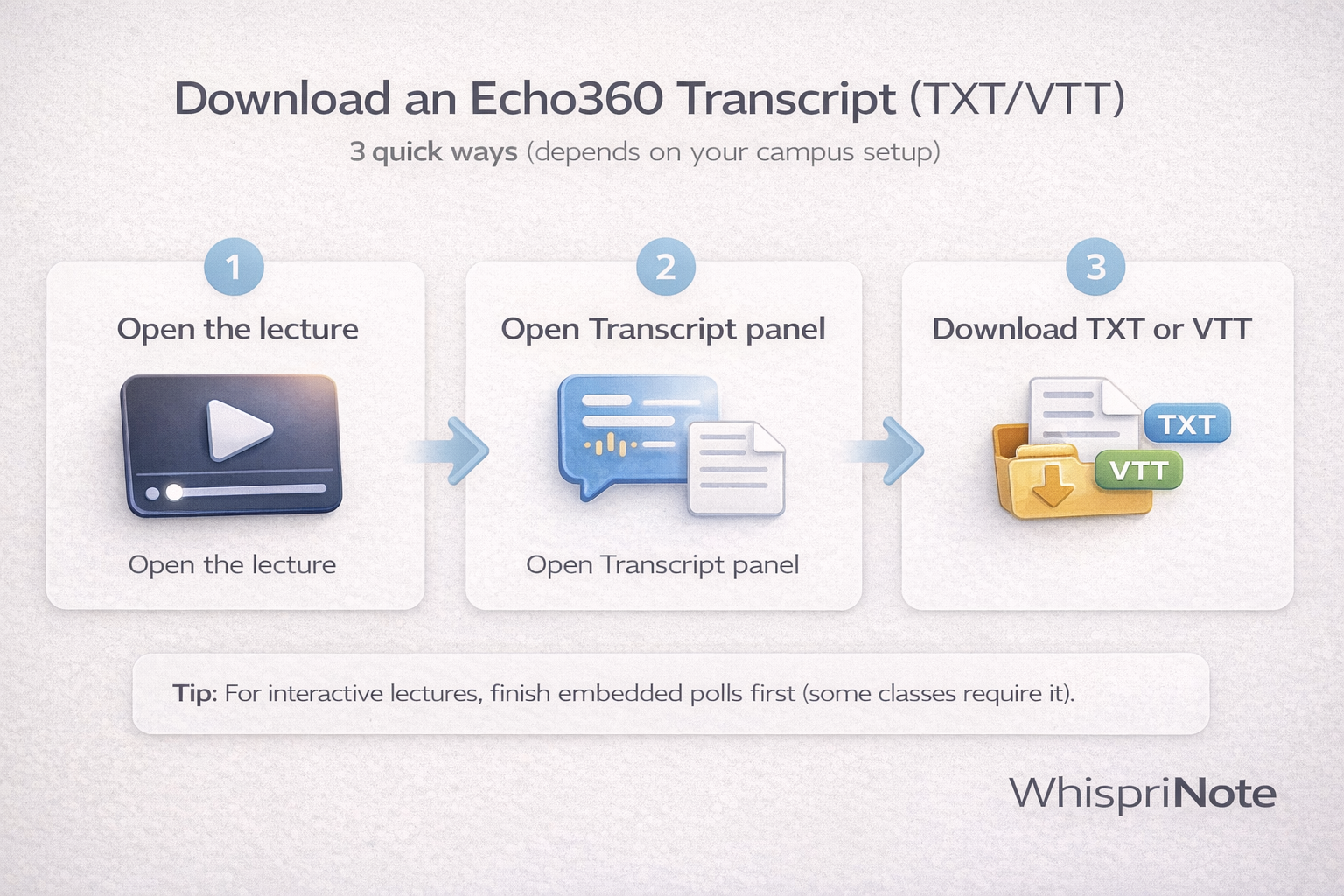
- Open the lecture in Echo360
- Open the Transcript panel/tab
- Click Download -> choose TXT or VTT
- Paste the text into WhispriNote (or upload audio) to get clean notes + diagrams
If you do not see Transcript or Download, jump to Troubleshooting below.
What you will download: TXT vs VTT (which one should you pick?)
TXT is best for studying.
- Clean text (easy to copy and paste into notes)
- Usually includes speaker labels (like "Speaker 1")
VTT is best for timestamps and captions workflows.
- Includes time-coded cue blocks
- Useful if you want to align text with the video timing
Student pick: download TXT for notes, and only grab VTT if you need timestamps.
How to download an Echo360 transcript (new player)
Step 1: Open your lecture
- Go to your course/class in Echo360
- Open the lecture video (the normal playback page)
Step 2: Open the Transcript panel
Look for a "Transcript" tab/panel next to other learning tools (layout varies by school).
Step 3: Download as TXT or VTT
- Click Download
- Select TXT (clean text) or VTT (timestamps)
You should now have a local file you can open in any text editor.
How to download in the legacy classroom view (older UI)
Some schools still use an older player interface.
- Open the lecture
- Open the transcript panel
- Use the download icon near the transcript search area
- Save the TXT (or VTT if available in your setup)
If your browser does not automatically download, check your downloads bar or folder.
Troubleshooting: transcript download issues
1) You do not see "Transcript" at all
This usually means one of these is true:
- The instructor did not enable captions/transcripts
- The transcript has not been generated yet
- Your role/access level does not allow transcript viewing
Fix:
- Refresh and try again later (some transcripts appear after processing)
- Check a different lecture (some are captioned, some are not)
- Ask your instructor to enable or publish captions/transcript
2) You see the transcript, but the Download button is missing
Common causes:
- Restricted permissions for students
- The media is embedded in a way that limits downloads
Fix:
- Open the lecture in a full player page (not a tiny embedded view)
- Try a different browser (Chrome or Edge usually works best)
3) Interactive lecture: you must answer polls first
Some Echo360 interactive media requires you to respond to polls before transcript download becomes available.
Fix:
- Play through the lecture and answer the polls
- Return to Transcript -> Download
4) The transcript is there, but the quality is messy
Auto-captions can mishear names, acronyms, or accents.
Fix:
- Download TXT and run it through a structured-note workflow (next section)
- You will get clean sections even if the raw transcript is imperfect
The fastest way to turn an Echo360 transcript into study notes (WhispriNote workflow)
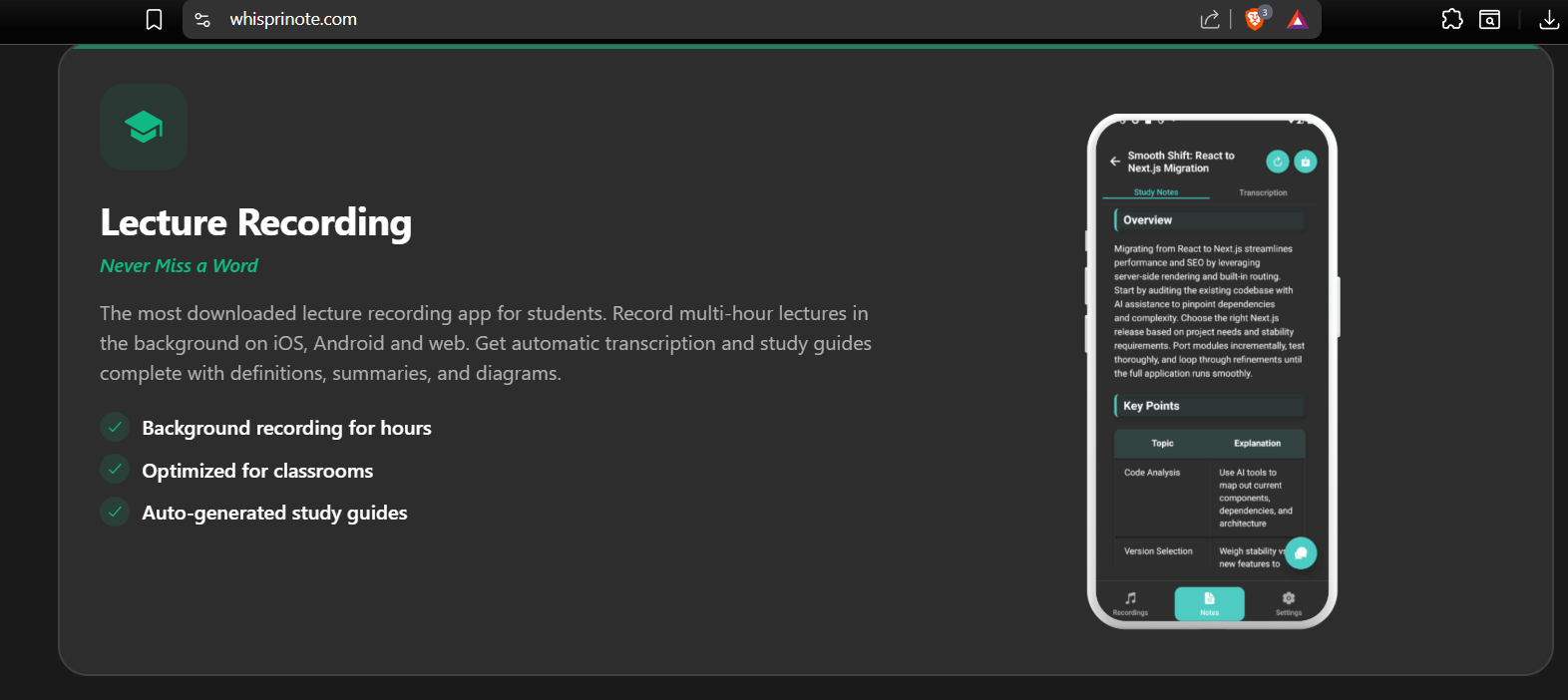
Raw transcripts are long, repetitive, and hard to review. WhispriNote turns Echo360 lecture text into:
- Key points (clean bullets)
- Quick summaries
- Definitions and important terms
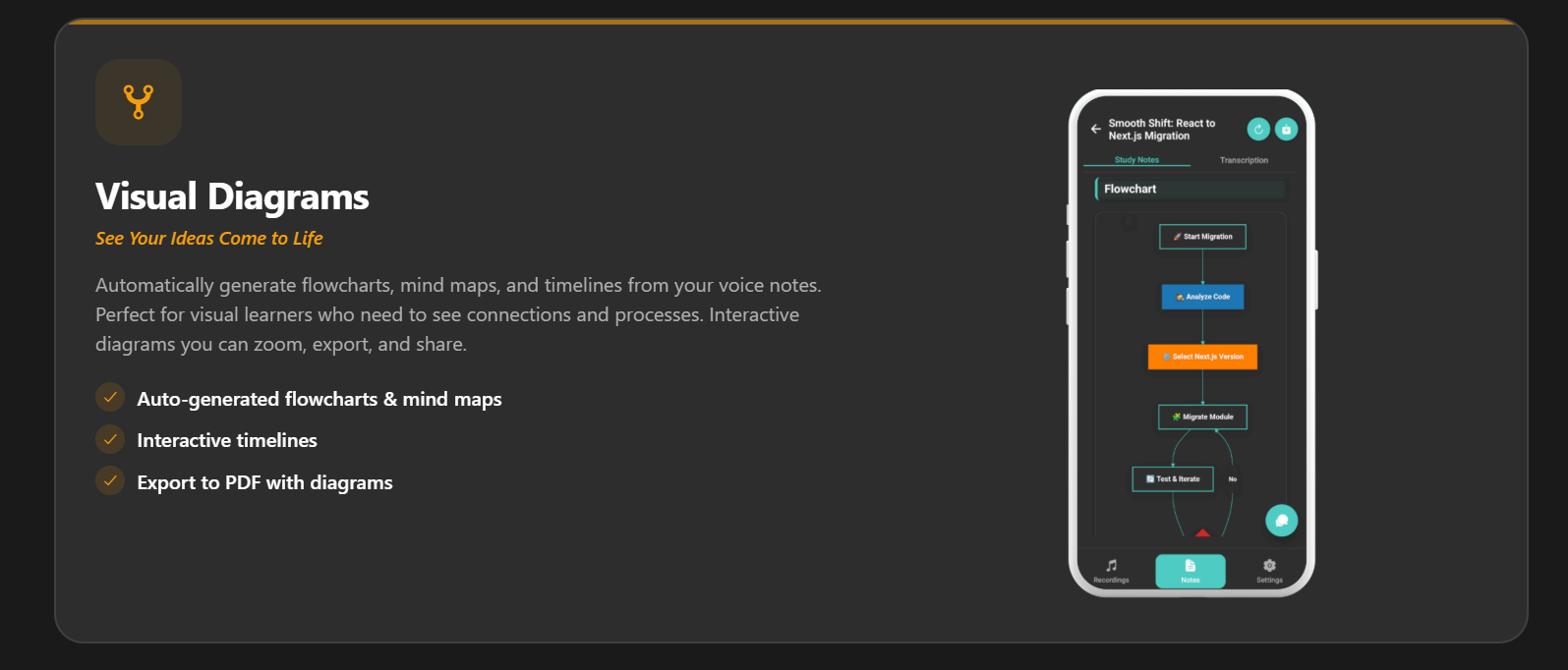
- Flowcharts and mind maps (so you can see the lecture)
- Review questions (so you remember it)