If your school uses Canvas Studio, you have probably had this exact moment:
You can see captions or transcript text, but you cannot find the download button (or it is missing).
This guide shows how to download a Canvas Studio transcript (usually as a TXT file for students) and how to download caption files (SRT/VTT) when you have access, plus quick fixes when the option disappears.
Quick answer (most students)
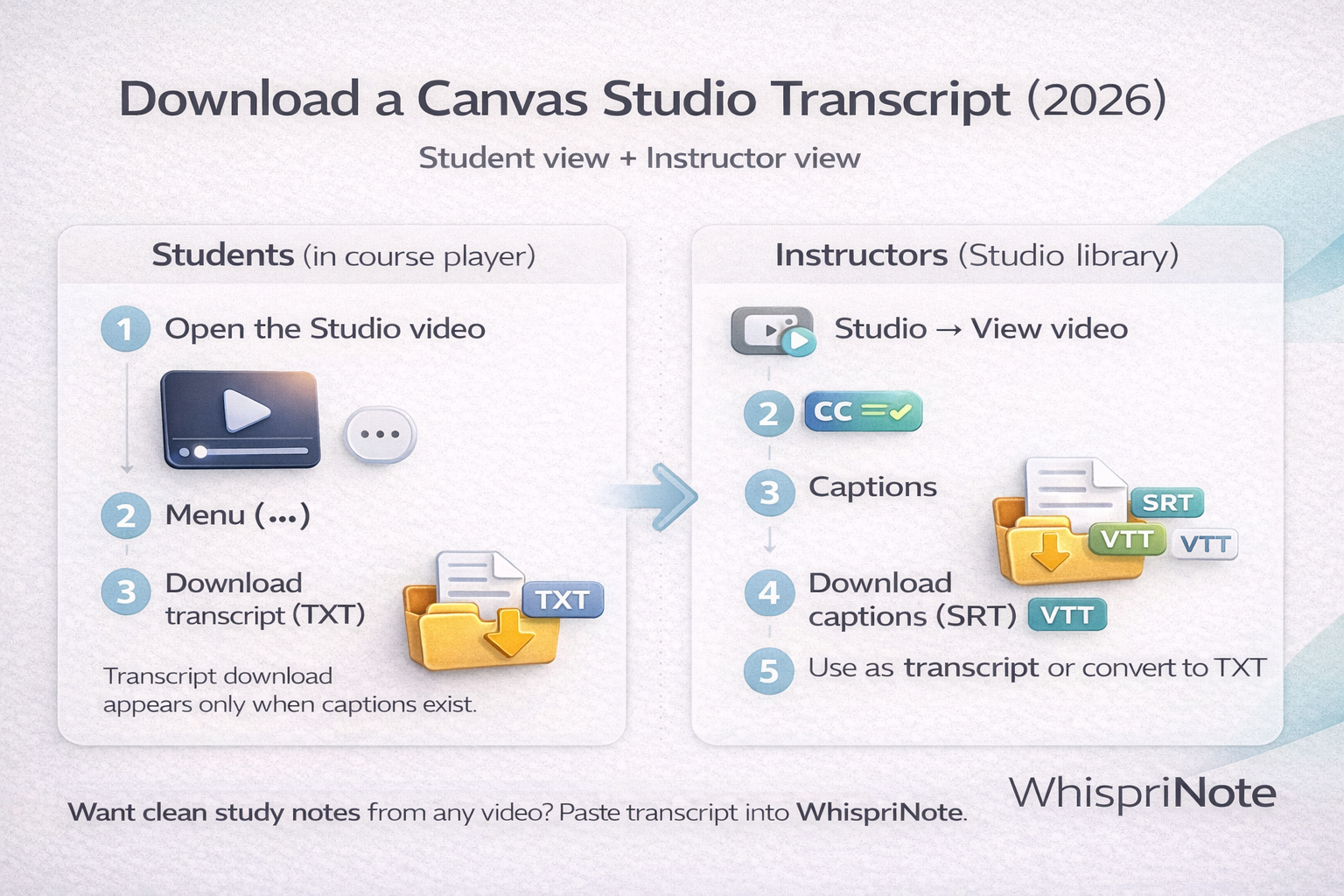
- Open the Studio video inside your course
- Click the player menu (three dots)
- Choose Download transcript (TXT)
If you do not see it, jump to Why the download option is missing below.
Transcript vs captions (what you actually need)
Transcript (TXT)
- Best for studying: easy to copy and paste into notes
- Usually appears as "Download transcript"
Captions (SRT/VTT)
- Time-stamped lines (better for subtitles and syncing)
- Often downloaded from the Captions area, if you have permission
Student tip: if you only want to study faster, TXT is usually the win.
Method 1: Students - download transcript from the course player
This is the most common setup: you are watching a Studio video embedded in your course.
Step-by-step
- Open your Canvas course and play the Studio video
- Find the player menu (often three dots near the top-right of the player)
- Click Download transcript
- Save the file (usually
.txt)
If you want it readable
A transcript TXT might look choppy (line breaks, timestamps, speaker labels). That is normal.
Quick cleanup:
- Paste into a doc
- Remove extra line breaks
- Add headings like "Key concepts", "Examples", "Exam hints"
(Or use the WhispriNote workflow below.)
Method 2: Instructors - download captions (SRT/VTT) from Studio library
If you created or uploaded the video (or have instructor permissions), you can usually download caption files.
Step-by-step
- In Canvas global navigation, open Studio
- Find your media and click View
- Open Captions
- Download the caption track (commonly
.srt; some setups also support.vtt) - Use the caption file as your transcript (or convert it to TXT)
Convert SRT to TXT (fast)
If your download is SRT and you want a clean transcript:
- Open the file in a text editor
- Remove the timestamp lines and line numbers
- Keep only the spoken text
Why the "Download transcript" option is missing (and fixes)
1) The video has no captions
In many Canvas Studio setups, transcript download depends on captions existing.
Fix:
- If you are a student: ask your instructor to enable or generate captions
- If you are the uploader: generate captions or upload an SRT or VTT file
2) You are in a restricted or embedded view
Some course embeds limit controls.
Fix:
- Open the video in a larger player view (pop-out or full page if available)
- Try another browser (Chrome or Edge usually behave best in Canvas)
3) Captions are still processing
Auto captions can take time.
Fix:
- Refresh later (or check another lecture - some have captions, some do not)
4) Your institution disabled transcript downloads
Some campuses restrict downloads for policy reasons.
Fix:
- Use the study workflow approach: capture the content you are allowed to access and turn it into notes (below).
Turn a Canvas Studio transcript into study notes (the WhispriNote workflow)
A downloaded transcript is better than nothing, but it is still a wall of text.