If your university hosts lectures on Mediasite, you can often download a transcript as a TXT file. That is perfect for fast studying, searching, and turning lectures into clean notes.
This guide covers:
- How to download a Mediasite transcript (TXT)
- Three common download paths (player vs MyMediasite portal vs admin view)
- Fixes if Download Transcript is missing
- A simple workflow to study faster using the transcript
Official site: Mediasite
Quick answer (30 seconds)
Most students download the transcript from the player:
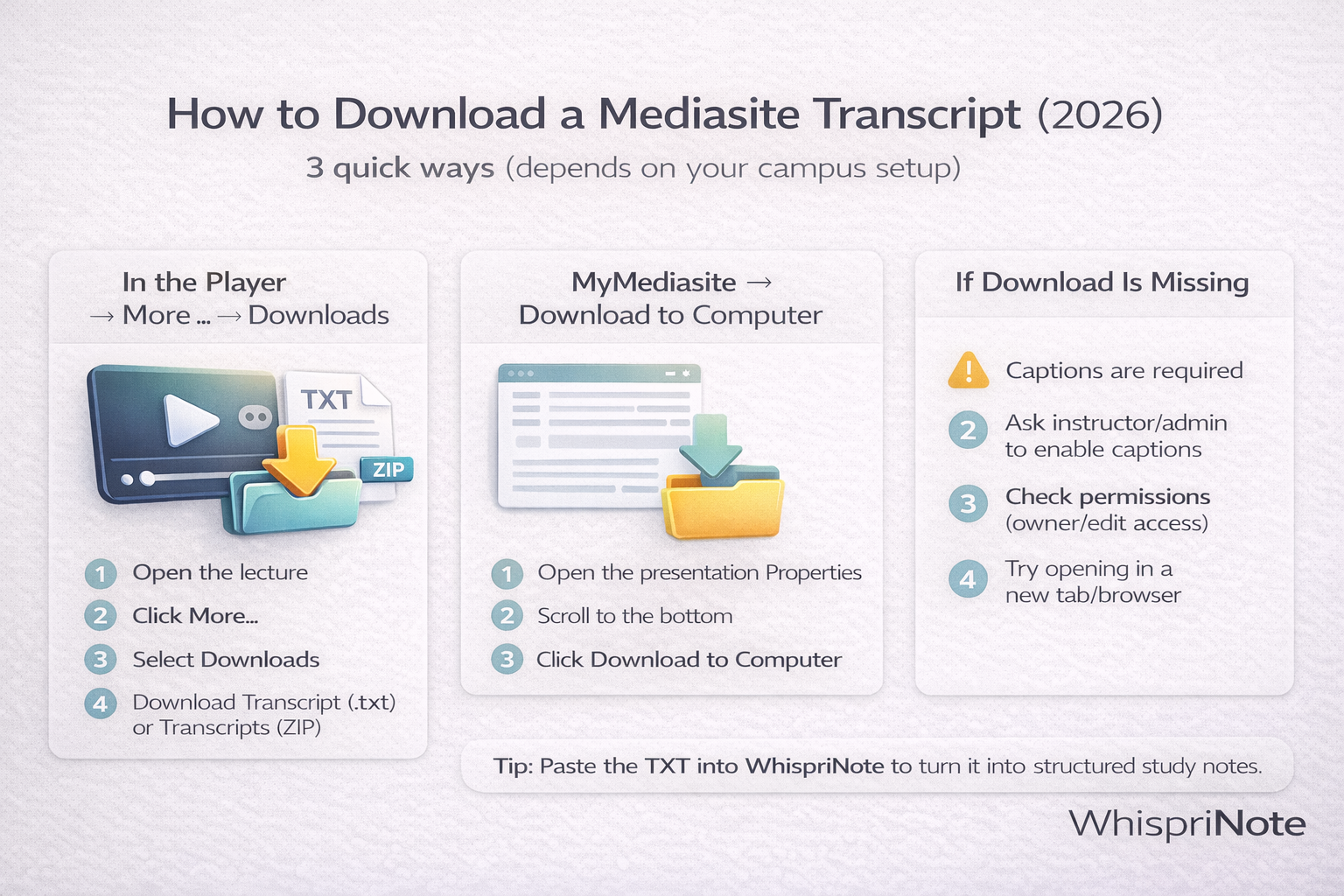
- Open the lecture
- Click More (three dots)
- Choose Downloads
- Download Transcript (.txt) (or Transcripts (ZIP) if shown)
If you do not see that menu, your campus may require the MyMediasite method below.
TXT vs ZIP: what you might see
- Transcript (.txt) = plain text you can read, print, or paste into your notes
- Transcripts (ZIP) = a zipped folder of transcripts (often when multiple languages exist)
Method 1: Download transcript from the Mediasite player (most common)
Use this if you are watching a lecture in the Premier Player (typical student view).
Steps
- Open the lecture and let it load fully
- Click More (three dots)
- Select Downloads
- Click Transcript (.txt)
(or click Transcripts to download a ZIP of all transcript files)
Method 2: Download transcript from the MyMediasite portal (owners/editors)
Use this if your campus uses MyMediasite (often instructors, TAs, or users with edit access).
Steps
- Log in to MyMediasite
- Open your presentation Properties
- Scroll to the bottom and click Download to Computer
- In the dialog, click Download Transcript (downloads a
.txtfile)
Method 3: Download transcript from a properties page in the management view (admins)
Some Mediasite setups show a properties page with a direct Download Transcripts option.
Steps
- Open the presentation Properties
- Click Download Transcripts
- Save the file to your computer
Visual: 3 ways to download a Mediasite transcript
Fix: Download Transcript missing (most common reasons)
1) Captions are not available
Mediasite transcripts are usually generated from captions.
If captions have not been added or enabled, the transcript download option may not appear.
What to do: ask your instructor or admin to enable captions for the lecture.
2) You do not have permission
Some campuses only allow transcript downloads for:
- the content owner
- editors or managers
- certain course roles
What to do:
- Try the player method (Method 1) first
- If it still does not appear, you may need the instructor to export it for you
3) Embedded view hides download controls
Sometimes Mediasite is embedded inside an LMS page and controls are limited.
What to do:
- Open the lecture in a new tab
- Try a different browser (Chrome is usually safest)
- Disable aggressive ad or script blockers for that page
How to study faster using a Mediasite transcript (10-minute workflow)
Once you have the TXT: