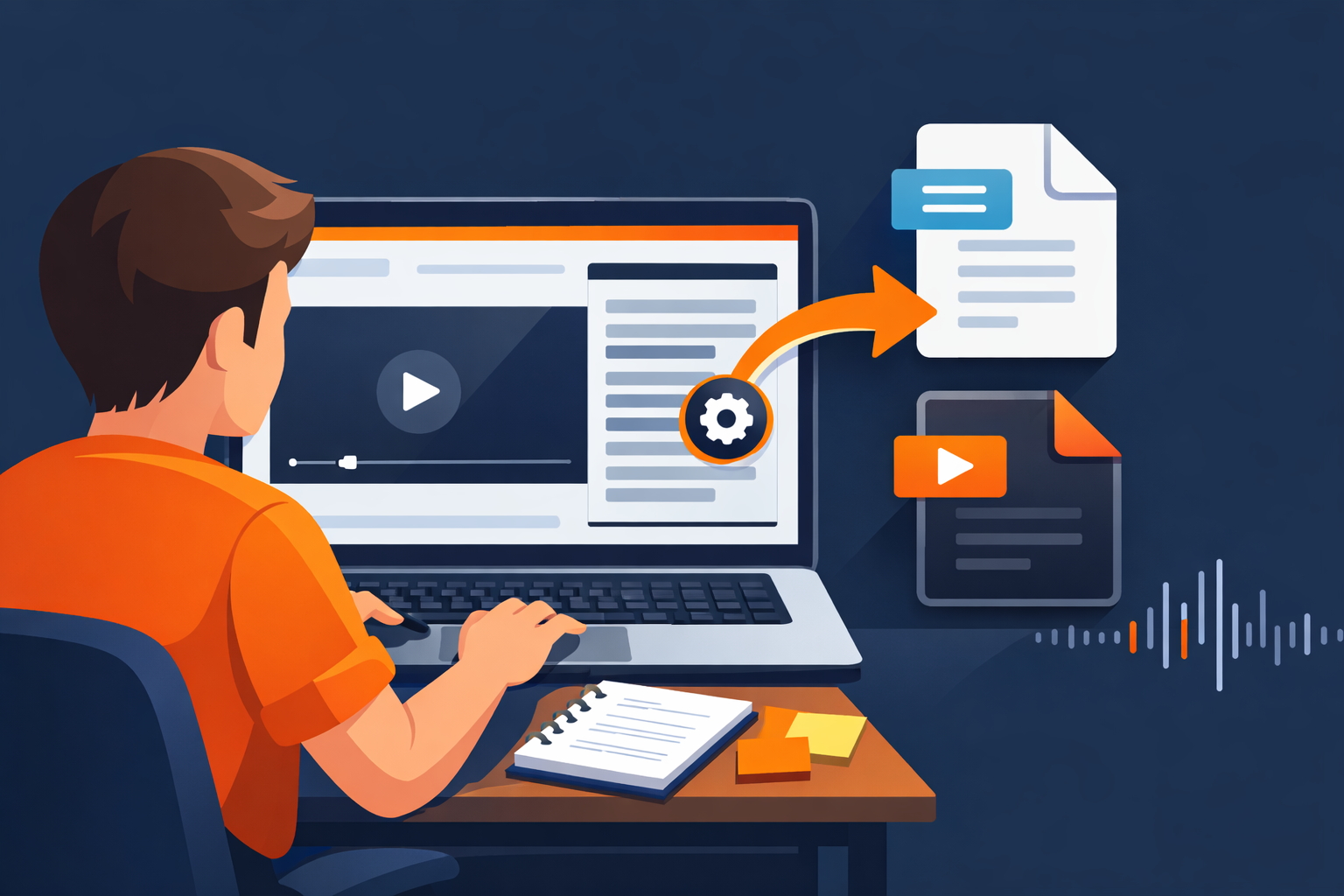
If you are searching Brightspace transcript download (or "D2L transcript .txt or .vtt"), you usually want one of these:
- A readable transcript you can skim fast (
.txt) - A timestamped caption file you can edit or reuse (
.vtt)
Brightspace can download both, but only when the video has captions available.
Quick answer (30 seconds)
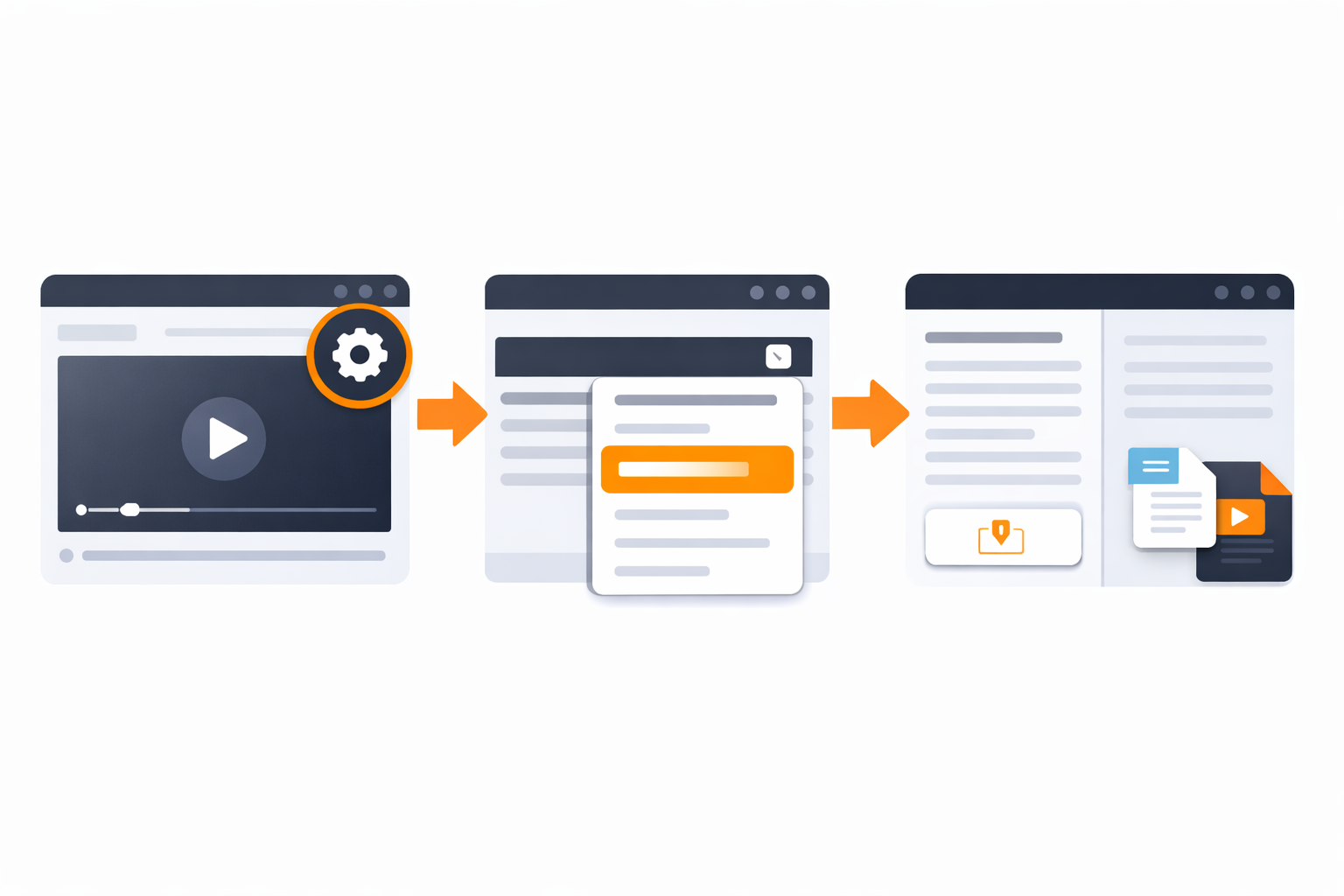
- Open the video inside Brightspace.
- Click the Settings (gear) in the media player.
- Choose View transcript.
- Click Download and pick:
- Transcript (.txt) for simple reading
- Captions (.vtt) for timestamps and editing
If you do not see View transcript, jump to Fix: View transcript missing below.
TXT vs VTT (which file should you download?)
Transcript (.txt)
Best for:
- Fast studying and skimming
- Printing
- Copy and paste into notes
What it looks like:
- Plain text (usually no timestamps)
Captions (.vtt)
Best for:
- Timestamped studying (quote exact moments)
- Editing captions
- Reusing captions in other players or tools
What it looks like:
- A WebVTT file with timecodes and caption blocks
Student tip: if you only want to study faster, TXT is usually the win.
How to download a Brightspace transcript (.txt) or captions (.vtt)
This works for Brightspace videos that use the built-in Media Player and Transcript View.
Step-by-step
- In your course, open the content page that has the video.
- Start the video so the player controls appear.
- Click the Settings (gear) icon.
- Select View transcript.
- In the transcript panel, click Download.
- Choose Transcript (.txt) or Captions (.vtt).
Fix: View transcript missing
In Brightspace, you can only view or download a transcript if captions exist for that video.
Here are the most common reasons the option is missing:
1) The video has no captions yet
What to do:
- If you are a student: ask your instructor to enable or generate captions.
- If you are the uploader: generate captions or upload a
.vttfile.
2) The video is not a Brightspace Media Player video
Some schools embed other tools inside Brightspace (so it looks like Brightspace, but it is a different platform).
Quick clue:
- If you do not see a transcript panel, it might be Panopto, Kaltura, Echo360, or Canvas Studio.
Use these guides instead:
- Panopto transcript download
- Kaltura transcript download
- Echo360 transcript download
- Canvas Studio transcript download
3) Permissions are restricted
Sometimes students can view captions, but Download is disabled by course settings or role permissions.
What to do:
- Try from a different browser (Chrome is usually safest).
- If Download is still missing, it is likely a course or admin restriction.
Fix: Download button missing (but transcript opens)
If you can open the transcript but cannot download:
- Refresh the page and reopen the video
- Try an incognito or private window
- Try another browser
- Open the video in a new tab (some LMS embeds block downloads)
If none of those work, it is usually a permission or caption availability issue.
How to study faster with a Brightspace transcript
A transcript is not just text. It is a shortcut to higher grades if you use it right.
The 10-minute method
- Download
.txt - Highlight only:
- definitions
- lists (steps, criteria, formulas)
- professor "exam hints"