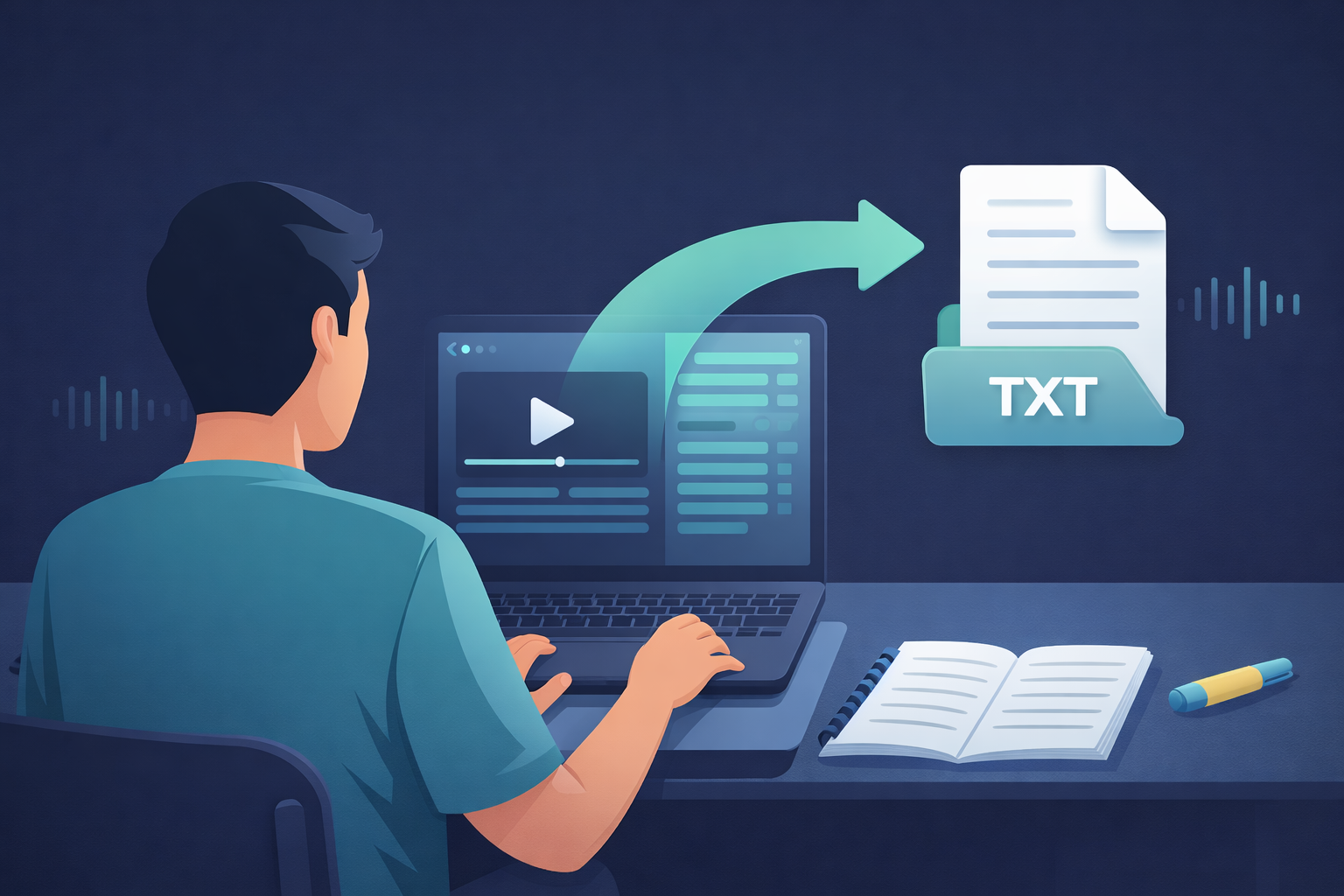
If your professor posts lectures on YuJa, you are already halfway to better grades because YuJa often includes captions or transcripts you can turn into summaries and exam-ready notes.
This guide shows:
- How to download YuJa captions (SRT) (when you have permission)
- How to download a YuJa transcript from the player (when available)
- What to do if the download button is missing
- The fastest workflow to turn a YuJa lecture into clean notes
Official site: YuJa
Quick answer (TL;DR)
- If you own the video (instructor/uploader): download captions as an .srt from Manage Media -> More -> Accessibility -> Download Captions.
- If you are a student/viewer: open the lecture in the player, click Show Transcript, then look for Download Transcript (some schools enable it).
- If downloads are disabled: you can still study faster by copying the transcript text (when visible), or downloading the recording (if allowed) and generating your own notes from the audio.
Transcript vs captions in YuJa (what is the difference?)
In most lecture systems:
- Captions are time-synced lines displayed on the video (often downloadable as SRT).
- A transcript is the same spoken content shown as a reading panel (sometimes downloadable as TXT).
Different universities enable different options, so you may see captions, a transcript panel, both, or neither.
Option 1: Download YuJa captions (SRT) if you have Manage Media access
This option is usually for instructors, content owners, or co-owners.
Steps (YuJa web)
- Log in to YuJa.
- Go to Manage Media.
- Select the video.
- Click More.
- Click Accessibility.
- Click Download Captions (downloads an .srt file).
You now have an SRT captions file you can search, edit, and reuse for studying.
Option 2: Download a YuJa transcript from the video player (when enabled)
Some YuJa setups let viewers download the transcript directly from the player.
Steps (player method)
- Open the YuJa lecture in the media player.
- Click Show Transcript (usually in the player menu).
- Click Download Transcript.
If you do not see "Download Transcript," jump to the troubleshooting section below.
If you do not see a transcript or download button (common fixes)
1) Captions or transcripts were never generated
If the recording has no captions, you may not see transcript options at all.
What to do:
- Ask the instructor (or accessibility office) if captions can be enabled for that lecture.
2) You do not have permission to download
Many universities only allow downloads for the content owner.
What to do:
- Try the player method (Option 2).
- If it is still blocked, ask for a transcript or captions export.
3) You are in a Course Channel view with restricted controls
Some course portals show a simplified player.
What to do:
- Open the lecture in the full player (new tab), or look for a View media link.
4) The transcript is there but inaccurate
Auto-captions can be wrong, especially with accents, technical terms, or noisy rooms.
Quick fixes:
- Skim the transcript panel while listening at 1.25x speed.
- Search for key terms and correct only the lines you need to study.
How to turn an SRT captions file into clean study text
An SRT file includes timestamps and line numbers. For studying, you usually want just the words.
Fast manual cleanup
- Open the
.srtfile in a text editor. - Delete number-only lines and timestamp lines.
- Keep the spoken text.
- Join short lines into paragraphs.
Pro tip: do not over-edit. Your goal is readable and searchable, not perfect.